


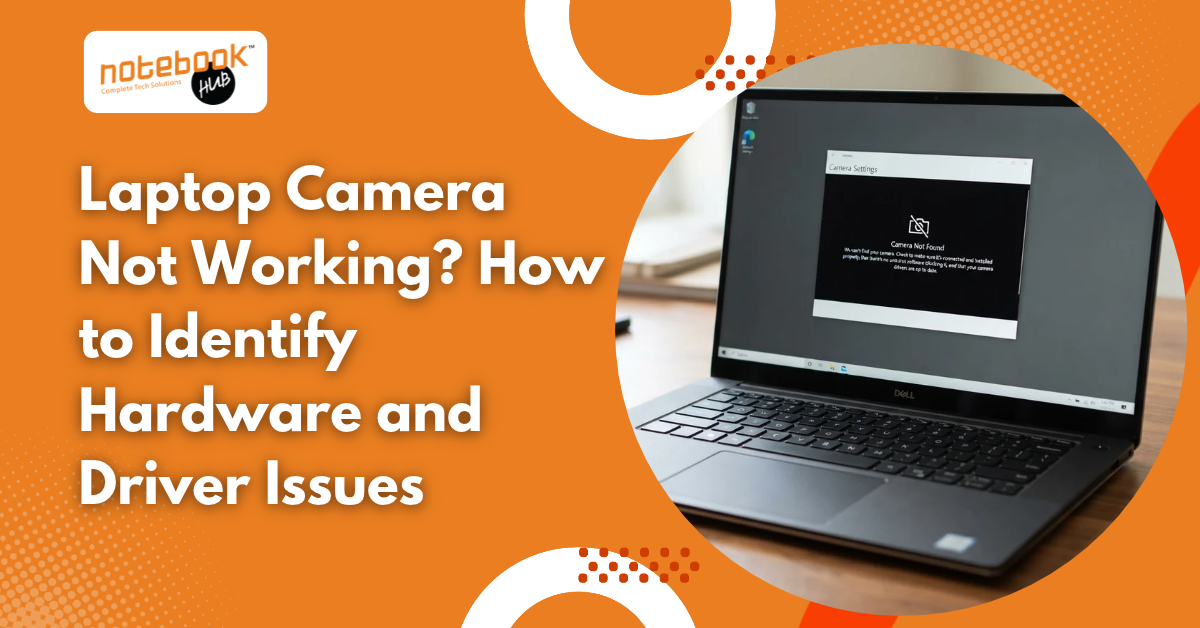
Summary: A laptop camera that suddenly stops working can interrupt meetings, online classes, interviews, and video calls. This guide explains common webcam symptoms, privacy checks, Windows settings, driver troubleshooting, and signs of physical damage. Follow these steps to identify the cause and decide whether professional repair is the right next step.
A camera failure does not automatically mean damaged hardware. Incorrect permissions, outdated drivers, application conflicts, Windows updates, and loose connections affect performance. Sometimes the webcam works in one application but fails in another. Checking settings before replacing parts may save time and money while guiding your repair decision more confidently.
Before buying a replacement or opening the laptop, check when the issue occurs, whether Windows detects the camera, and whether it works in another app. Testing it can show whether the problem is limited to Windows, one application, or the webcam itself. This helps guide your next step with confidence.
What Are The Common Symptoms Of A Laptop Camera Not Working?
Look for these signs:
- Black screen: Dark preview.
- Camera not detected: Windows cannot find it.
- Blurry image: The picture looks dim or unclear.
- Error message: Camera unavailable or access denied.
- Frozen video: Picture stops.
- Light without video: Indicator on, no image.
Symptoms alone do not prove hardware failure. Access errors suggest checking permissions; a missing Device Manager entry needs further checks. If only one app fails, check its settings first.
Start With Physical Camera And Connection Checks
Open any privacy shutter or camera switch. Some laptops also have a camera key; press it alone or with Fn. For an external USB webcam, reconnect the cable, try another port, or test it on another computer to isolate the fault. Do not pull at hinges or internal wiring. Clean the lens gently with a microfiber cloth; do not press the bezel.
Check Camera Privacy Settings And App Permissions
Windows may block a working webcam. In Settings, open Privacy and Security, then Camera. Enable Camera access and Let apps access your camera. Enable Let desktop apps access your camera too. In your meeting app, select the correct webcam and close other programs using it. Browsers may need separate site-level permission. Check antivirus camera permissions without leaving protection disabled.
Test The Webcam With Windows Camera
Open Camera from Start. If its preview works, check the meeting app’s permissions or selected device. Close any app currently using the webcam. If it also fails, fully restart the laptop to reload device services and close stuck processes.
How Can You Identify Laptop Camera Driver Problems?
Drivers connect Windows with the webcam. Missing, outdated, corrupted, or incompatible drivers can stop it from working. Open Device Manager. Look under Cameras, Imaging devices, or Sound, video and game controllers; categories vary by model.
A yellow warning symbol or error in Properties may indicate a driver issue. Read Device status; if disabled, right-click and select Enable device. Error codes can help narrow down the cause. If missing, choose Action, then Scan for hardware changes. Absence does not prove failure; drivers, firmware, privacy settings, or connections may be responsible.
Update, Roll Back, Or Reinstall The Camera Driver
In Device Manager, right-click the webcam and select Update driver, then Search automatically. Also check Windows Update’s Optional updates. If it failed after an update, open Properties, select Driver, choose Roll Back Driver if available, then restart.
If needed, uninstall the device and restart so Windows can reinstall it. Otherwise, download the correct driver from the manufacturer’s official support page. Match downloads to the exact laptop model. Avoid unfamiliar driver sites and unnecessary updater tools. Incorrect drivers can cause further problems.
Check Windows Updates And Troubleshooting Tools
Open Settings, choose Windows Update, and select Check for updates. Install relevant updates, including optional camera drivers, then restart. Updates may fix compatibility problems.
On Windows 11, search for Get Help and run the camera troubleshooter if available. Alternatively, open Settings, System, Troubleshoot, and Other troubleshooters, then run Camera if listed. Restart after each completed update.
Check BIOS Settings Carefully
Some laptops let users disable the integrated camera in BIOS or UEFI. Restart and press the manufacturer’s specified setup key. Find an integrated camera or onboard devices option and confirm it is enabled.
Keys and menus vary, and some models lack this option. Do not change unrelated BIOS settings; consult the manual or a technician if unsure.
What Are The Common Signs Of A Laptop Camera Hardware Problem?
Hardware damage becomes more likely when the webcam remains unavailable after permission, driver, update, and restart checks. Watch for these signs:
- The camera stopped working after a drop, impact, or liquid spill.
- Webcam appears or disappears when the screen angle changes.
- It fails in every app or is not detected consistently.
- Lens is cracked, damaged, or displaced.
- Inspection reveals a loose cable or failed camera module.
The built-in webcam connects through delicate display cables. A loose connector, damaged cable, failed module, or motherboard fault can interrupt it. Test before replacing parts. A changing screen angle can reveal intermittent cable contact. Do not open the display bezel yourself; you could damage the screen, hinge, or wiring.
How Can You Prevent Laptop Camera Problems In The Future?
Keep Windows and camera drivers updated through official sources. Review application permissions after system updates, clean the webcam lens with a soft microfiber cloth, use the privacy shutter when needed, and avoid applying pressure around the screen edge. These simple habits help maintain consistent camera performance.
Handle your laptop carefully, especially when opening or closing the display. Avoid placing heavy objects on the laptop or carrying it without proper protection. Test the camera before important meetings, interviews, or online classes to identify possible laptop problems early.
Additionally, avoid installing unknown driver utilities or unnecessary webcam software, as they may create compatibility or security issues. When you notice repeated freezing, camera detection errors, or intermittent connections, arrange a professional inspection rather than ignoring the symptoms. Regular care and timely attention can help prevent unexpected webcam failures.
When Should You Get Professional Laptop Camera Repair Services?
Seek professional diagnosis if Windows still cannot detect the camera, the laptop has physical or liquid damage, or the webcam disconnects repeatedly. A laptop repair technician can inspect the camera module, internal cables, connectors, and related software to identify the actual cause of the problem.
Proper testing helps determine whether the solution involves correcting a setting, reinstalling a driver, reconnecting a loose cable, or replacing a faulty camera module. This prevents unnecessary component replacement and additional expenses. Always ask for a clear diagnosis before approving any repair work.
Avoid attempting to open the laptop display or adjust internal camera connections without the right tools and technical knowledge. Laptop screens and webcam cables are delicate, and improper handling can cause further damage. Professional servicing helps protect other components while restoring camera functionality.
Restore Your Laptop Camera With Professional Repair Support
Is your laptop camera not working when you need it most? Whether you are facing a black screen, webcam detection error, blurry video, or driver-related issue, Notebook Hub can help you identify the problem and get your laptop back to normal. Our experienced technicians provide reliable troubleshooting and repair solutions to keep your work, meetings, and online communication running smoothly.
Looking for the best laptop repair services in Tilak Road, Pune? Visit Notebook Hub for professional laptop diagnostics, camera repairs, driver troubleshooting, and dependable technical support. Don’t let a faulty webcam interrupt your productivity. Contact us today, discuss your laptop issue with our repair experts, and get the assistance you need for a smooth and hassle-free repair experience.
Frequently Asked Questions
Why Is My Laptop Camera Showing A Black Screen?
A closed shutter, blocked permissions, app conflict, driver error, or hardware damage can cause it. Test Windows Camera, then check permissions and Device Manager.
How Do I Know If My Laptop Camera Driver Is Corrupted?
A warning icon, error status, missing entry, or failure after an update may signal corruption. Reinstall the official driver.
Can A Windows Update Make My Camera Stop Working?
Yes. Check optional driver updates, restart, or roll back the driver if the problem began after updating.
What Should I Do If My Laptop Camera Is Not Detected?
Check the shutter, camera key, permissions, and Device Manager. Scan for changes and check BIOS if supported. Seek diagnosis if still missing.
Can A Laptop Camera Be Repaired Without Replacing It?
Often. Permissions, driver reinstallation, or a loose cable may be the cause. Replace the module only if testing confirms failure.