


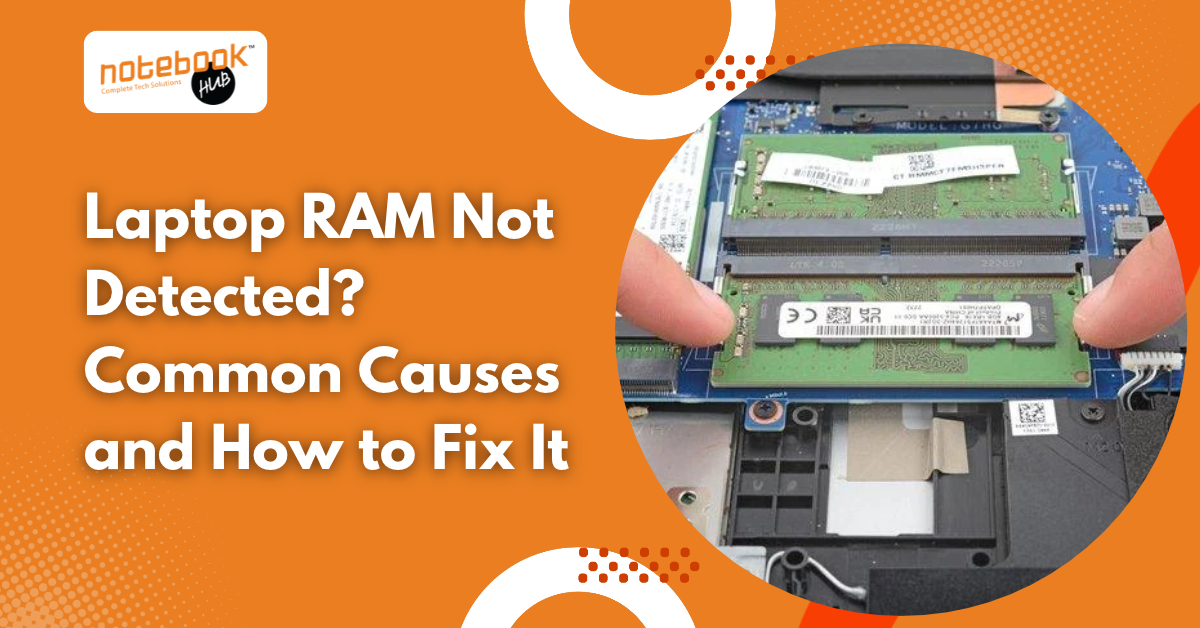
Summary: Laptop RAM not detected after an upgrade? Compatibility issues, improper installation, faulty memory modules, or BIOS settings may prevent your laptop from recognising RAM. This guide explains common causes, practical troubleshooting steps, memory diagnostics, and preventive measures to help restore memory recognition and improve laptop performance safely.
RAM plays an important role in laptop performance by temporarily storing data required for running applications and background processes. Sufficient memory helps your laptop handle multitasking, browsing, office work, and demanding software more smoothly. However, insufficient or improperly functioning RAM can cause slowdowns, crashes, and performance interruptions.
Installing additional RAM does not always guarantee that your laptop will recognise the upgraded memory. Compatibility issues, incorrect installation, faulty modules, damaged slots, or BIOS settings can cause detection problems. This guide covers common causes and practical solutions to help you troubleshoot RAM issues and determine when professional repair assistance is necessary.
Why Is Your Laptop RAM Not Detected After Installation?
A laptop may not detect all its memory. Signs include the old capacity appearing after an upgrade, a blank screen, beep codes, restarts, or failure to boot. Windows may show less usable memory because hardware, including integrated graphics, reserves RAM. Check BIOS to distinguish hardware detection from Windows reporting. A laptop that powers on normally but reports a smaller usable figure may not have a failed module. By contrast, a memory amount missing from BIOS, a startup warning, or repeated failure to complete the power-on self-test points more strongly towards installation, compatibility, or hardware trouble. Note the exact message carefully before troubleshooting.
What Are the Common Causes of Laptop RAM Detection Problems?
Incompatible RAM Specifications
The module may not match the laptop’s supported DDR generation, form factor, speed, voltage, or capacity. DDR generations are not interchangeable, and some models support only specific module sizes or configurations.
Improper RAM Installation
A module that is not fully seated may not make proper contact. Misaligned notches or unsecured retaining clips can prevent detection or stop the laptop from starting.
Faulty RAM Module
A new stick can be defective, while older memory can develop errors. Mishandling or electrostatic discharge may also damage a module.
Damaged RAM Slot
Dust, damaged contacts, or motherboard faults can stop a slot from recognising working memory. If one slot fails repeatedly, the issue may be its connection or circuitry.
BIOS Configuration or Firmware Issues
Incorrect BIOS Configuration or outdated firmware can sometimes affect memory recognition, particularly after a hardware change.
Maximum RAM Capacity Limit
Your laptop may support less memory than you installed or limit the capacity of each slot. The processor’s support and the laptop manufacturer’s design both matter.
How Can You Fix RAM Not Detected in Your Laptop?
Check RAM Compatibility With Your Laptop
Find the laptop model number and check its official specifications or service manual. Confirm DDR generation, form factor, speed, maximum capacity, and capacity per slot. Check whether memory is removable or soldered. Processor specifications provide additional limits, but follow laptop documentation. A module may fit and still be incompatible. Ask the manufacturer or a technician when unsure.
Reseat the RAM Module Properly
Shut down, unplug the charger, and disconnect the battery only as instructed. Follow the service guide before opening the case. Use anti-static precautions, release the clips, and remove the module carefully. Align its notch, insert it at the specified angle, and press until secured. Never force it. Do not open sealed laptops or devices with soldered memory.
Test RAM Modules Individually
If your laptop has two removable modules, power it down and test one at a time in a supported slot. Start the laptop after each change and check the detected capacity. If one module fails in a known working slot while another works, the first may be faulty. Follow the service manual because some systems require specific slot arrangements.
Check the RAM Slots
Use a working module to check another supported slot, if the service guide allows it. If the same module works in one slot but not another, the affected slot, motherboard connection, or memory circuitry may need inspection. Stop if you see bent contacts, burn marks, liquid damage, or other physical damage.
Reset BIOS Settings
Enter BIOS or UEFI using the startup key specified by the manufacturer and check the reported memory. If settings may have changed, consider restoring defaults. Record customised boot, storage, or security settings first, as resetting them may affect startup. Save changes and restart. BIOS menus vary, so avoid changing unfamiliar options.
Update BIOS Carefully
A firmware update may improve compatibility, but is not guaranteed to fix detection. Read the release notes and use only the update for your exact model. Keep the charger connected and never interrupt installation.
Run Memory Diagnostics
Run the manufacturer’s pre-boot diagnostics when available. Alternatively, search Windows Memory Diagnostic in Start, follow the prompts, and restart. Record error codes. A failed test may indicate faulty memory; a passing result does not rule out slot or compatibility issues.
Check Installed and Usable Memory
Press Ctrl + Shift + Esc, open Task Manager, select Performance, then Memory. Review the reported capacity, speed, and slots in use. Compare this with BIOS and the modules installed. Integrated graphics and other hardware may reserve memory, making usable RAM lower than the installed total. If BIOS also shows less than expected, revisit compatibility and hardware checks.
How To Prevent RAM Detection Problems During Upgrades?
- Check your laptop’s exact specifications before purchasing additional memory, including the supported DDR generation, RAM speed, capacity, and voltage requirements.
- Purchase RAM from a reliable seller and ensure the memory module is compatible with your laptop model.
- Shut down your laptop completely, disconnect the charger, and remove the battery if required by the manufacturer’s instructions before installation.
- Use anti-static precautions while handling RAM modules to prevent electrostatic discharge that could damage sensitive components.
- Hold RAM modules by their edges and avoid touching the gold contacts during installation.
- Inspect the RAM slots for dust, dirt, or visible damage that could affect the connection.
- Align the memory module correctly and avoid applying excessive pressure while inserting it into the slot.
- If your laptop has multiple RAM slots, follow the recommended installation order mentioned in the user manual.
- After installation, check the recognised memory capacity in BIOS and Windows Task Manager to ensure the upgrade is successful.
When Should You Seek Professional Laptop Repair?
Seek professional assistance if your laptop refuses to boot after a RAM upgrade, repeatedly fails to recognise a memory module, or displays memory-related diagnostic errors. A technician can test individual RAM modules, inspect memory slots, and identify possible motherboard or memory controller problems. Professional diagnosis is particularly important when the laptop has soldered memory, visible hardware damage, or a swollen battery. Avoid repeatedly removing and reinstalling RAM if you are unsure about the correct procedure.
Continuing to use incompatible or faulty memory can also lead to unexpected crashes, restarting issues, and unstable system performance. An experienced laptop technician can verify whether the problem is caused by the RAM module, motherboard connection, BIOS configuration, or another internal component. Instead of replacing parts unnecessarily, a proper hardware inspection helps identify the actual cause and determine the most suitable repair. Getting expert assistance at the right time can also prevent further damage and help restore your laptop’s normal functioning.
Get Your Laptop RAM Problem Fixed With Expert Assistance
Is your laptop not detecting newly installed RAM or showing less memory than expected? Don’t let hardware problems interrupt your work or daily activities. Notebook Hub provides reliable laptop troubleshooting, RAM upgrade assistance, and hardware diagnostics to identify the issue. When searching for the best laptop repair shop in Hinjewadi, choose experienced technicians who understand your device’s requirements.
Whether you are dealing with incompatible RAM, faulty memory modules, damaged slots, or installation errors, our team can inspect your laptop and recommend the right solution. Get dependable repair assistance and bring your laptop back to its expected performance. Contact us today to book your laptop inspection and get professional help with your RAM detection problem.
Frequently Asked Questions
Why Is My Laptop Not Detecting Newly Installed RAM?
The module may be incompatible, incorrectly seated, defective, or beyond the laptop’s capacity limit. A faulty slot or firmware issue is also possible. Check the exact model specifications and see whether BIOS recognises the memory.
How Do I Fix RAM Not Showing Up in My Laptop?
Check the supported memory type and capacity, then reseat the module only if the service instructions permit it. Test removable modules individually, check supported slots, review BIOS detection, and run memory diagnostics. Never force components.
Can Incompatible RAM Cause My Laptop Not To Boot?
Yes. An unsupported memory type, capacity, or configuration can prevent startup or cause repeated restarts. A module may physically fit but still be incompatible. Verify the laptop specifications before installing replacement memory.
Why Does My Laptop Show Less RAM Than Installed?
Integrated graphics and other hardware resources may reserve some memory, reducing the amount available to Windows. Compare BIOS and Task Manager readings. If BIOS also reports less, check installation, compatibility, and slot condition.
How Do I Know If My Laptop RAM Is Faulty?
Startup failures, crashes, unexpected restarts, and diagnostic errors can indicate faulty RAM. Test the module in a known supported working slot when safe. A technician can determine whether the module or laptop hardware is responsible.