


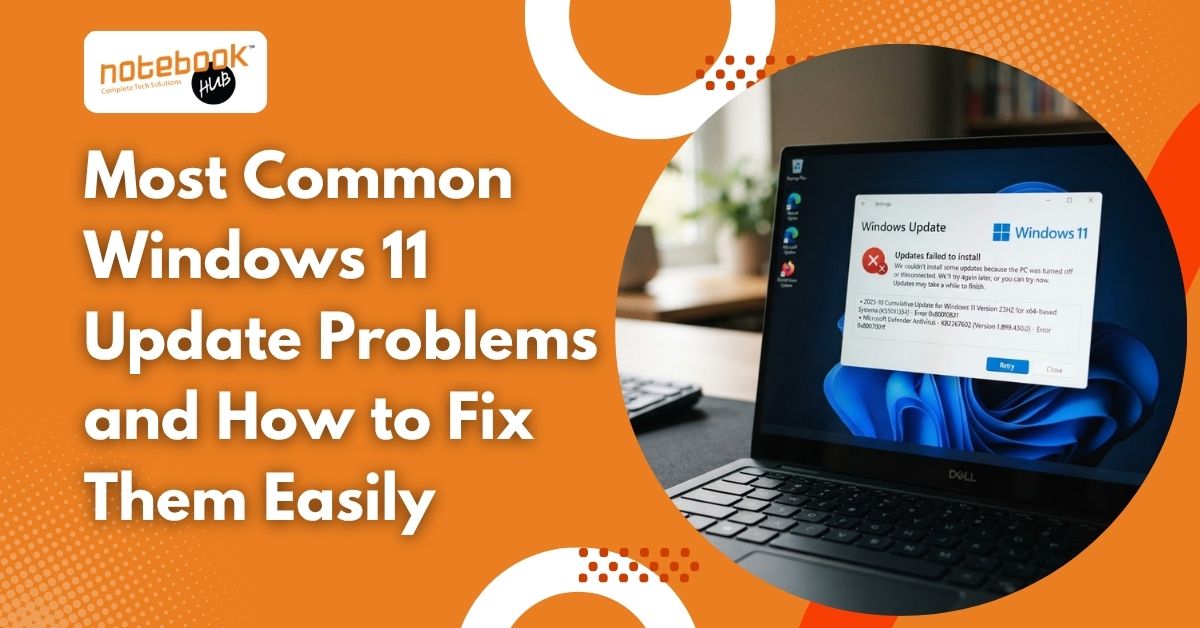
Many issues are linked to an unstable internet connection, limited storage, damaged update files, or incompatible drivers. Before resetting Windows or trying complicated fixes, start with a few basic checks and follow a safe troubleshooting order. Knowing what to check first can save time and help you avoid unnecessary changes to your laptop. The following sections explain common Windows 11 update problems, practical solutions you can try at home, and situations where professional technical support may be the better option.
What Are the Common Windows 11 Update Problems and Their Fixes?
Windows needs a reliable connection, enough free disk space, working background services, and compatible drivers to install updates. Note any error code before trying different fixes, as it may help identify the cause. You can also learn about common laptop problems and their fixes to troubleshoot other issues affecting your device.
1. Windows 11 Update Keeps Failing
An update may download successfully but fail during installation. Windows might display an error code, restart unexpectedly, or restore the previous version.
How to fix it:
- Restart your laptop and reconnect to a stable internet connection.
- Open Settings, select Windows Update, and check for updates again.
- Run the Windows Update troubleshooter under Settings > System > Troubleshoot > Other troubleshooters.
- Disconnect unnecessary USB devices and external drives before retrying.
If the same error appears repeatedly, note its code and investigate the specific cause before attempting advanced repairs.
2. Windows 11 Update Gets Stuck at a Percentage
An update that remains at 0%, 51%, or 99% can make it seem as though your laptop has stopped responding. However, larger updates may take time to install, depending on your hardware and connection.
How to fix it:
Keep your laptop connected to its charger and allow the installation time to progress. If it remains unchanged for an unusually long period, check your internet connection and available storage. Restart only when necessary, and avoid switching off the laptop during an active installation unless it is clearly unresponsive. After restarting, open Windows Update and check whether the installation can resume.
3. Windows 11 Update Fails Because of Low Storage
Windows needs sufficient free disk space to download temporary files and complete installation. When your system drive is nearly full, updates may fail or leave your laptop running slowly.
How to fix it:
Open Settings > System > Storage to review space usage. Remove unnecessary temporary files, uninstall applications you no longer use, and move large personal files to suitable external storage after backing them up. Storage Sense can also help clear temporary files automatically. Check the update’s storage requirements before trying again, because major upgrades may need more free space than smaller security updates.
4. Windows Update Displays an Error Code
Error codes provide useful clues about what went wrong. For example, 0x80070422 can indicate a disabled update service, while 0xC1900101 commonly points to a driver-related problem.
How to fix it:
First, write down the complete error code. Run the troubleshooter and check your connection, available storage, and Windows Update service. For driver-related errors, check for compatible drivers through your laptop manufacturer’s official website. Do not download random repair utilities or change unfamiliar system settings. If the error continues, consult troubleshooting guidance for instructions specific to that code.
5. Windows 11 Update Download Is Slow or Fails
Sometimes the download barely progresses, repeatedly restarts, or fails before installation begins. An unstable connection, temporary network interruption, or incomplete download may be responsible.
How to fix it:
Check whether other websites load normally. Restart your router if necessary, reconnect to Wi-Fi, and pause bandwidth-heavy downloads. If you use a VPN, temporarily disconnect it when troubleshooting a connection-related installation error. You can also restart your laptop and try again. Avoid downloading update files from unofficial websites, as these may expose your system to unwanted software.
6. Laptop Becomes Slow After a Windows Update
Your laptop may take longer to start, applications may respond slowly, or the fan may become unusually active after an update. Background processes, driver incompatibility, or software conflicts can contribute to these symptoms.
How to fix it:
Restart your laptop and allow background update tasks to finish. Open Task Manager to identify applications consuming excessive CPU, memory, or disk resources. Check for additional Windows updates and compatible driver updates. Avoid assuming that every performance problem is caused by Windows itself. Along with keeping enough storage available and updating compatible drivers, these tips to speed up a slow laptop can help you maintain better performance during everyday use.
7. Windows 11 Update Service Is Not Running
Windows Update depends on background services to download and install updates. If a required service is stopped or disabled, the update process may fail.
How to fix it:
Press Windows + R, type services.msc, and press Enter. Locate Windows Update and review its status. If it is stopped, use the available Start option where appropriate. Avoid changing unrelated services or modifying advanced settings without understanding their purpose.
Restart your laptop and check Windows Update again. If the service repeatedly stops, further software troubleshooting may be required.
8. Apps, Wi-Fi, or Devices Stop Working After Updating
An update can sometimes reveal compatibility problems with an application, network adapter, printer, or other device. You might notice missing connectivity, applications crashing, or peripherals no longer responding correctly.
How to fix it:
Restart the affected application or device first. Check the manufacturer’s website for compatible drivers and application updates. For Wi-Fi issues, review the network adapter in Device Manager and use the appropriate Windows network troubleshooter.
If the issue started directly after an update, check Microsoft’s release health information before removing anything. This can help determine whether a known issue or device-specific conflict may be involved.
How Can You Prevent Windows 11 Update Problems?
A few regular maintenance habits can reduce the likelihood of future update failures.
- Keep sufficient free space on your system drive.
- Maintain a reliable internet connection during downloads.
- Back up important documents before major upgrades.
- Install compatible drivers from trusted manufacturer websites.
- Restart your laptop when Windows requests it.
- Keep applications and security software compatible with your Windows version.
These steps cannot prevent every update issue, but they can make routine maintenance more manageable.
When Should You Seek Professional Laptop Repair?
Basic troubleshooting is often enough for minor update errors. However, repeated installation failures, unexpected shutdowns, disk errors, or persistent system crashes may require a closer inspection. If your laptop cannot start Windows properly or repeatedly fails after several safe troubleshooting attempts, avoid experimenting with advanced repair commands.
A technician can examine software faults, storage health, driver conflicts, and possible hardware problems. Before attempting advanced repairs, review this guide to fixing Windows 11 issues for additional troubleshooting steps that may help resolve common software problems.
Why Choose a Notebook Hub for Laptop Repair?
Recurring Windows 11 update errors can affect your laptop’s performance and interrupt your daily work. Notebook Hub helps users address laptop problems by identifying possible software issues, update failures, and performance concerns. Instead of repeatedly trying different fixes, getting the problem checked can help you understand the cause and choose a suitable solution.
Here’s how Notebook Hub can help:
- Troubleshoot Windows update and software-related issues.
- Identify possible causes of slow performance and repeated errors.
- Check laptop problems that continue after basic troubleshooting.
- Provide guidance on suitable repair options based on the issue.
Whether your laptop is stuck during an update or experiencing problems after installation, contact Notebook Hub to discuss the issue and determine the next steps for getting your device working reliably again.
Windows 11 Update Problems? Get Expert Laptop Support
Are Windows 11 update errors slowing down your work or stopping your laptop from starting properly? Notebook Hub helps you address laptop software issues, recurring update failures, and performance problems with practical repair support. Get your device checked before a small issue turns into a bigger interruption.
Looking for a reliable professional laptop repair shop in Hinjewadi? Don’t let recurring Windows 11 update problems slow down your productivity or disrupt your daily routine. Request professional technical support for expert guidance, get your laptop checked, and take the next step toward smooth and reliable performance.
Frequently Asked Questions
Why Does My Windows 11 Update Keep Failing?
Common causes include low storage, unstable internet, damaged update files, stopped services, or incompatible drivers. Run the troubleshooter and note the error code.
What Should I Do If an Update Is Stuck?
Keep the laptop connected to power and allow time for installation. If the system remains unresponsive, follow official troubleshooting instructions before restarting.
Can I Delete Windows Update Files?
You can clear eligible temporary files or follow a trusted process to reset the update cache. Do not manually delete unfamiliar system folders.
Why Is My Laptop Slow After Updating?
Background tasks, driver conflicts, application issues, or limited storage may affect performance. Restart, review Task Manager, and check for compatible updates.
When Should I Contact a Laptop Repair Technician?
Contact a technician if updates keep failing, Windows will not start, or crashes continue after basic troubleshooting. Professional diagnosis can help identify software or hardware faults.