

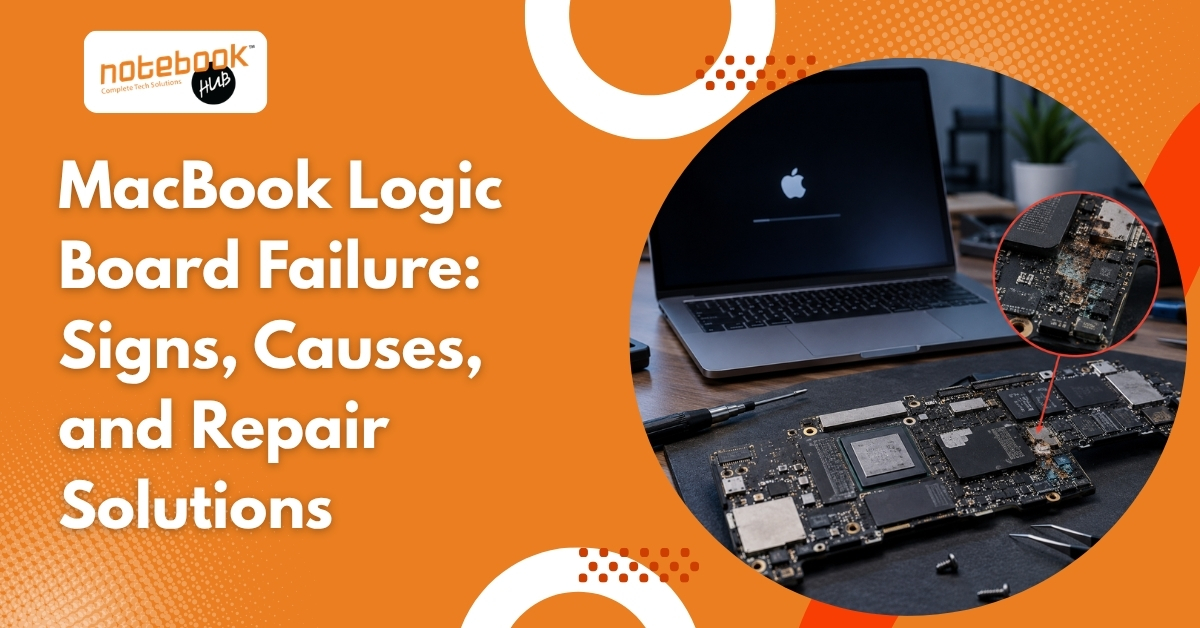
A MacBook that suddenly refuses to turn on, stops charging properly, or shuts down without warning can be frustrating, especially when there are no obvious signs of physical damage. In many cases, users assume the battery, charger, or display is responsible. While those components can certainly fail, the real issue often lies much deeper inside the device. The logic board is one of the most important parts of a MacBook. It acts as the central hub that connects and controls the processor, memory, storage, charging system, display, ports, WiFi, and Bluetooth. When a fault develops on the logic board, multiple functions can stop working at the same time, making the problem difficult to identify without proper diagnosis. Understanding the warning signs of logic board failure can help prevent further damage, avoid unnecessary part replacements, and improve the chances of a successful repair. What Is a MacBook Logic Board? The logic board is Apple’s version of a motherboard. It contains the essential circuits and controllers that allow all major hardware components to communicate with one another. Unlike many traditional laptops, modern MacBooks integrate several critical functions directly onto the logic board, making it one of the most complex and important components inside the device. Because so many systems depend on the logic board, even a small failure can affect charging, startup, display output, connectivity, and overall performance. Common Signs of MacBook Logic Board Failure Logic board issues rarely appear as a single obvious problem. Instead, users often experience a combination of symptoms that may gradually worsen over time. Symptom Possible Logic Board Connection MacBook won’t turn on Power management circuit failure Charging issues Damaged charging circuit Random shutdowns Unstable power delivery Black screen Display controller issue WiFi or Bluetooth problems Faulty onboard controller Overheating Failing component drawing excess power USB ports not working I/O controller failure MacBook Won’t Turn On One of the most common signs of logic board failure is a MacBook that shows no response when the power button is pressed. The screen remains black, the keyboard does not light up, and there are no startup indications. While a faulty charger or battery can sometimes cause similar symptoms, a logic board issue becomes more likely when known working accessories fail to solve the problem. Random Shutdowns and Restarts If a MacBook suddenly shuts down during normal use or restarts without warning, the issue may be related to power management circuits on the logic board. These circuits regulate how power is distributed throughout the system, and when they begin to fail, unexpected shutdowns can occur even when the battery is sufficiently charged. Charging Problems Many users immediately blame the battery when charging issues arise. However, charging circuits are located on the logic board itself. A MacBook that charges intermittently, stops charging altogether, or displays incorrect battery percentages may actually be experiencing a board-level fault rather than a battery problem. Black Screen or Display Issues A black screen does not always mean the display has failed. In some cases, the MacBook powers on normally, but a damaged display controller prevents the screen from functioning correctly. Screen flickering, graphical glitches, colored lines, or distorted visuals can also indicate a logic board issue. Multiple Features Stop Working Together If the keyboard, trackpad, USB ports, WiFi, Bluetooth, or camera suddenly stop functioning around the same time, the logic board should be investigated. When several unrelated features fail simultaneously, the issue often originates from a shared controller or circuit on the board rather than individual components. Excessive Heating A failing component on the logic board can draw abnormal amounts of power, generating excessive heat even during light tasks such as web browsing or video streaming. If a MacBook feels unusually hot without running demanding applications, a hardware inspection may be necessary. What Causes MacBook Logic Board Failure? Logic board failures can happen suddenly or develop gradually over time. Some causes are preventable, while others are simply the result of aging hardware. The most common causes include: Liquid spills and moisture exposure • Overheating and poor ventilation • Faulty chargers or power surges • Physical drops and impact damage • Long-term component wear Liquid Damage Water, coffee, tea, and other liquids remain one of the leading causes of logic board failure. Even if the MacBook appears to work normally after a spill, internal corrosion can continue spreading and damage sensitive components over time. Overheating Excessive heat places stress on electronic components and solder connections. Dust accumulation, blocked air vents, and years of heavy usage can gradually contribute to thermal damage. Power Surges and Faulty Chargers Low-quality chargers and unstable power sources can damage charging circuits and power management components on the logic board. Repeated voltage fluctuations may eventually lead to startup or charging issues. Physical Impact Accidental drops and pressure damage can affect internal circuits even when the outer casing appears relatively unharmed. Microscopic damage to solder joints can create intermittent faults that become more noticeable over time. Aging Components Like all electronics, logic board components naturally degrade with age. Years of heating and cooling cycles can weaken circuits until they eventually fail. How Professionals Diagnose Logic Board Issues One of the biggest mistakes MacBook owners make is assuming the cause of a problem without proper testing. Logic board symptoms often overlap with battery, charger, display, and software-related issues. Professional diagnosis typically involves a combination of visual inspection, power rail testing, charging circuit analysis, thermal testing, and component-level inspection. These procedures help technicians identify the exact source of the fault rather than replacing parts through trial and error. This is particularly important because a MacBook that appears completely dead may actually have a single failed component that can be repaired without replacing the entire logic board. Can a MacBook Logic Board Be Repaired? The good news is that logic board failure does not always require a full replacement. Many faults occur at the component level, allowing technicians to replace damaged capacitors, charging circuits, controllers, and other individual components while preserving the original board. Component-level repairs