Notebook Hub
All Departments
  • Laptops
  • Desktops
  • Mobiles
  • Tablets
  • Accessories
  • Home
  • Laptops
  • Mobiles
  • Tablets
  • Accessories
  • Blog
  • Contact

@ 2026 Notebook Hub. All Rights Reserved.

Designed and Developed by The Branding Tales

Notebook Hub
Sign In
Account
0
1
Total
₹58,000
  • Lenovo LOQ 12th Gen Core i5-12450HX - (512GB – 12GB RAM) – Grey
    Lenovo LOQ 12th Gen Core i5-12450HX - (512GB – 12GB RAM) – Grey
    1 × ₹58,000
    ×

Subtotal: ₹58,000

View cartCheckout

Free Shipping on All Orders Over $75
All Departments
  • Laptops
  • Desktops
  • Mobiles
  • Tablets
  • Accessories
  • Home
  • Laptops
  • Mobiles
  • Tablets
  • Accessories
  • Blog
  • Contact
Only this weekend
Super Discount

Items on sale this week

Top picks this week. Up to 50% off the best selling products.

Lenovo Tab M9-TB 310XU  |  9 Inch Full HD Display

Lenovo Tab M9-TB 310XU | 9 Inch Full HD Display

₹21,000 ₹11,999
Lenovo Tab M9-TB 310XU  |  9 Inch Full HD Display | 3GB RAM, 32 GB Storage

Lenovo Tab M9-TB 310XU | 9 Inch Full HD Display | 3GB RAM, 32 GB Storage

₹18,000 Original price was: ₹18,000.₹10,499Current price is: ₹10,499.
Lenovo Tab P12 | 12.7 Inch 3K Display | 8GB RAM, 256GB Storage

Lenovo Tab P12 | 12.7 Inch 3K Display | 8GB RAM, 256GB Storage

₹42,000 Original price was: ₹42,000.₹24,999Current price is: ₹24,999.
Lenovo Tab K11 (TB 330FU) | 10.95 Inch FHD Display | 8GB RAM, 128GB Storage

Lenovo Tab K11 (TB 330FU) | 10.95 Inch FHD Display | 8GB RAM, 128GB Storage

₹31,000 Original price was: ₹31,000.₹16,499Current price is: ₹16,499.
Lenovo Tab M9-TB 310FU |  9 Inch Full HD Display | 4GB RAM, 64 GB Storage

Lenovo Tab M9-TB 310FU | 9 Inch Full HD Display | 4GB RAM, 64 GB Storage

₹18,000 Original price was: ₹18,000.₹10,499Current price is: ₹10,499.
Lenovo Tab M9 | ZAC40076IN | 9 Inch Full HD Display | 4GB RAM, 64 GB Storage

Lenovo Tab M9 | ZAC40076IN | 9 Inch Full HD Display | 4GB RAM, 64 GB Storage

₹20,000 Original price was: ₹20,000.₹12,999Current price is: ₹12,999.
Notebook Hub
1
Total
₹58,000
  • Lenovo LOQ 12th Gen Core i5-12450HX - (512GB – 12GB RAM) – Grey
    Lenovo LOQ 12th Gen Core i5-12450HX - (512GB – 12GB RAM) – Grey
    1 × ₹58,000
    ×

Subtotal: ₹58,000

View cartCheckout

Free Shipping on All Orders Over $75

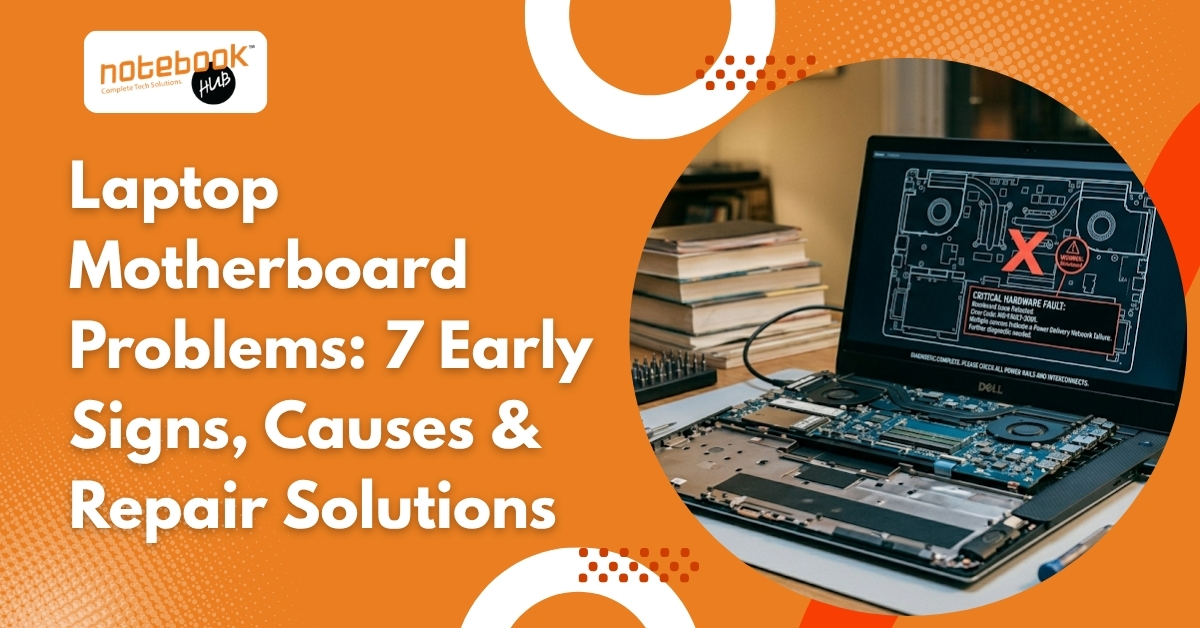
Laptop Motherboard Problems: 7 Early Signs, Causes & Repair Solutions

Laptop
Laptop Motherboard Problems: 7 Early Signs, Causes & Repair Solutions

A laptop can survive a weak battery, a damaged keyboard, or even a faulty screen. The motherboard is different. It is the main circuit board that connects and controls almost every component inside the laptop, including the processor, RAM, storage drive, graphics system, charging circuit, cooling system, display, and ports. When the motherboard starts developing faults, the symptoms can be confusing. The laptop may randomly restart, stop charging, overheat, display a blank screen, or fail to power on completely. Many users initially assume the battery, charger, or software is responsible, only to discover later that the motherboard is the real problem. The good news is that motherboard failures rarely happen without warning. In most cases, the laptop shows several signs before complete failure occurs. Understanding these warning signs can help prevent expensive repairs, data loss, and unexpected downtime. What Does a Laptop Motherboard Do? The motherboard acts as the central communication hub of the laptop. Every major component relies on it to send and receive information. A typical laptop motherboard manages: Processor (CPU) RAM (Memory) SSD or Hard Drive Graphics Processing Unit (GPU) Charging Circuit Cooling System USB Ports HDMI and Display Outputs WiFi and Bluetooth Modules Audio Components If the motherboard develops a fault, multiple parts of the laptop can begin malfunctioning at the same time. 7 Early Signs of Laptop Motherboard Problems 1. Random Freezing, Crashes, and Restarts One of the earliest signs of motherboard failure is system instability. The laptop may suddenly freeze while working, restart without warning, or display frequent blue screen errors. These issues occur because the motherboard is unable to maintain stable communication between hardware components. Common symptoms include: Applications closing unexpectedly Frequent blue screen errors Sudden restarts System freezing during normal use Random performance drops If these problems continue even after software updates and malware scans, the motherboard should be inspected. 2. Laptop Does Not Turn On Every Time A healthy laptop should power on consistently. If the power button needs multiple attempts or the laptop behaves differently each time it starts, the motherboard’s power delivery circuits may be failing. Watch for signs such as: Power button not responding Power light blinking briefly Laptop turning on and immediately shutting down Fans spinning but no display Delayed startup process Many motherboard failures begin with inconsistent power behavior. 3. Overheating During Basic Tasks Laptops naturally generate heat, but excessive temperatures during simple activities should not be ignored. A damaged motherboard can create irregular power distribution, forcing components to consume more power than necessary. Possible symptoms include: Constant fan noise Hot keyboard surface Performance throttling Automatic shutdowns Slow system response after heating up Overheating is both a symptom and a cause of motherboard damage. 4. Battery Not Charging Properly Charging issues are often blamed on the battery or charger, but the motherboard controls the charging process. When charging circuits become damaged, the battery may behave unpredictably. Common warning signs include: Battery percentage stuck at one level Charging starts and stops repeatedly Laptop only works while plugged in Charging indicator behaving abnormally Battery is draining unusually fast A damaged charging IC or power management circuit is often responsible. 5. Display Problems Without Screen Damage Display issues do not always mean the screen itself is faulty. The motherboard manages communication between the graphics system and the display panel. If motherboard components start failing, visual problems can appear. Common symptoms include: Flickering display Horizontal or vertical lines Distorted images Black screen while power remains on Color abnormalities These issues often become more frequent over time. 6. USB Ports, HDMI, or WiFi Stop Working When multiple connectivity features stop functioning, the motherboard may be the underlying cause. The motherboard contains controllers that manage communication with external devices and internal modules. Possible signs include: USB devices not being detected HDMI output failing Audio jack issues Intermittent WiFi disconnections Bluetooth not functioning properly A failing I/O controller can affect several ports and devices simultaneously. 7. Burning Smell or Visible Component Damage This is the most serious warning sign. A burnt smell often indicates a short circuit or damaged component on the motherboard. Possible causes include: Liquid spills Power surges Faulty chargers Overheating Electrical component failure If a burning smell is noticed, stop using the laptop immediately and disconnect the charger. What Causes Laptop Motherboard Problems? Motherboards are designed to last for years, but several factors can reduce their lifespan. Excessive Heat – Heat is one of the biggest enemies of electronic components. Blocked vents, dust accumulation, and failing cooling systems can gradually damage motherboard circuits. Liquid Damage – Even a small amount of liquid can create short circuits and corrosion that spread across the motherboard. Power Fluctuations – Unstable electrical supply and low-quality chargers can damage sensitive power management circuits. Physical Impact – Dropping a laptop can crack motherboard traces or loosen solder connections. Aging Components – Capacitors, MOSFETs, and integrated circuits naturally degrade over time, especially in heavily used laptops. How to Confirm a Motherboard Issue? Motherboard problems often resemble battery, RAM, storage, or software issues. Before assuming the motherboard is faulty, several checks can help narrow down the cause. Test with Another Charger – A faulty charger can create symptoms that look similar to motherboard failure. Connect an External Monitor – If the laptop powers on but shows no display, an external monitor can help determine whether the issue lies with the screen or the motherboard. Remove External Devices – Disconnect all USB devices, external drives, and accessories before startup testing. Observe Startup Behaviour – Pay attention to power lights, fan activity, keyboard backlighting, and startup sounds. Listen for Diagnostic Beep Codes – Some laptops generate specific beep patterns that indicate hardware faults. If these basic tests do not identify the issue, professional diagnostics are recommended. How Technicians Diagnose Motherboard Faults Professional repair centers use specialized equipment to locate motherboard problems accurately. Power Rail Testing – Technicians check voltage lines throughout the motherboard to identify damaged power circuits and short circuits. BIOS Testing – A corrupted BIOS chip can

Read More

Laptop Not Charging? 8 Common Causes and How to Fix Them

Laptop
Laptop Not Charging? 8 Common Causes and How to Fix Them

You’re working on an important task, the battery drops to 5%, and even though the charger is plugged in, the percentage refuses to increase. In some cases, the charging light doesn’t turn on. In others, Windows displays a message like “Plugged In, Not Charging.” Whatever the situation, it’s easy to assume the battery has failed and that an expensive repair is around the corner. Fortunately, that isn’t always the case. Many laptop charging issues are caused by problems that are surprisingly simple to fix. A loose charger connection, damaged cable, faulty charging port, software glitch, overheating issue, or incorrect battery settings can all prevent a laptop from charging properly. Before spending money on repairs or replacement parts, it makes sense to work through the most common causes first. Here are eight things worth checking when a laptop refuses to charge. 1. Is the Charger Connected Properly? It sounds obvious, but this is one of the most common reasons laptops stop charging. Over time, charging connectors can become slightly loose through daily use. The charger may appear connected while not making proper contact with the charging port. Similarly, the connection between the power adapter and charging cable can loosen without being immediately noticeable. Start by unplugging the charger from both the laptop and the wall outlet. Wait a few seconds before reconnecting everything firmly. If the laptop has a charging indicator light, check whether it turns on. It’s also worth trying a different wall socket. Sometimes the problem isn’t with the laptop at all but with a faulty outlet, extension board, or surge protector. Checking these simple connections first can often save a significant amount of troubleshooting time. 2. Is the Power Adapter Working? The power adapter plays a critical role in the charging process. Its job is to convert electricity from the wall outlet into the power required by your laptop. If the adapter develops a fault, the battery won’t charge regardless of its condition. Common warning signs of a failing adapter include excessive heat, unusual buzzing sounds, a burning smell, or the complete absence of charging indicators. If possible, test your laptop with another compatible charger. This is often the fastest way to determine whether the adapter is causing the problem. When using another charger, make sure it matches the voltage and wattage recommended by the manufacturer. Using an incompatible charger can lead to charging problems and may even damage certain laptop models. Many charging issues that seem serious are eventually traced back to a faulty adapter. 3. Check the Charging Cable for Damage Even if the power adapter is working correctly, the charging cable itself may be damaged. Laptop charging cables are constantly bent, twisted, wrapped, and unplugged. Over time, this repeated stress can weaken or break the wires inside. The section closest to the charging connector is usually the most vulnerable because it experiences the most movement during everyday use. Carefully inspect the cable for: Fraying Cracks in the insulation Bent connectors Exposed wiring Loose connections If the charging status changes when the cable is moved, there is a strong chance the cable has suffered internal damage. Replacing a damaged cable is usually far less expensive than replacing a battery or other hardware components. 4. Inspect the Charging Port Carefully The charging port is one of the most heavily used components on any laptop, yet it is often overlooked during troubleshooting. Laptops are carried in bags, used on different surfaces, and exposed to dust and debris every day. Over time, small particles can accumulate inside the charging port and interfere with the connection between the charger and the laptop. In addition to dirt buildup, charging ports can become loose or damaged due to years of repeated use. A damaged charging port may cause symptoms such as: Charging only at certain angles Intermittent charging Slow charging speeds Complete charging failure Use a flashlight to inspect the charging port carefully. If dust or debris is visible, compressed air can often remove it safely. However, if the port appears loose, bent, or physically damaged, professional repair may be required. 5. Has the Battery Reached the End of Its Lifespan? Laptop batteries are designed to last for several years, but they don’t last forever. Every rechargeable battery has a limited number of charge cycles. A charge cycle represents one full discharge and recharge of the battery. Most modern laptop batteries are designed to last between 300 and 1,000 charge cycles depending on usage habits and battery quality. As the battery ages, its ability to hold and receive a charge gradually declines. Some common signs of battery deterioration include: Battery draining unusually quickly Reduced battery backup time Charging percentage becoming stuck Unexpected shutdowns Battery swelling If your laptop is several years old and still uses its original battery, battery wear becomes a likely cause of charging issues. Many laptop manufacturers provide built-in battery diagnostic tools that can help determine whether the battery is still functioning properly. 6. Are Battery Charging Limit Settings Enabled? This is a surprisingly common issue on modern laptops. Many manufacturers, including HP, Dell, Lenovo, ASUS, and Acer, offer battery health features designed to extend battery lifespan. These settings intentionally limit charging to 60%, 80%, or another predefined level to reduce long-term battery wear. As a result, some users believe their laptop has stopped charging when it is actually behaving exactly as intended. If your battery consistently stops charging at the same percentage, check the battery management software provided by your laptop manufacturer. Disabling or adjusting these settings may restore normal charging behavior if full battery capacity is required. 7. Could a Software or Driver Issue Be Responsible? Not every charging problem is caused by hardware. Modern laptops rely on software, firmware, and battery management drivers to regulate the charging process. If any of these components become outdated or corrupted, charging problems can occur even when the hardware itself is functioning normally. Windows users can open Device Manager and expand the Batteries section. If a warning symbol appears

Read More

10 Warning Signs Your MacBook Needs Professional Repair

Laptop
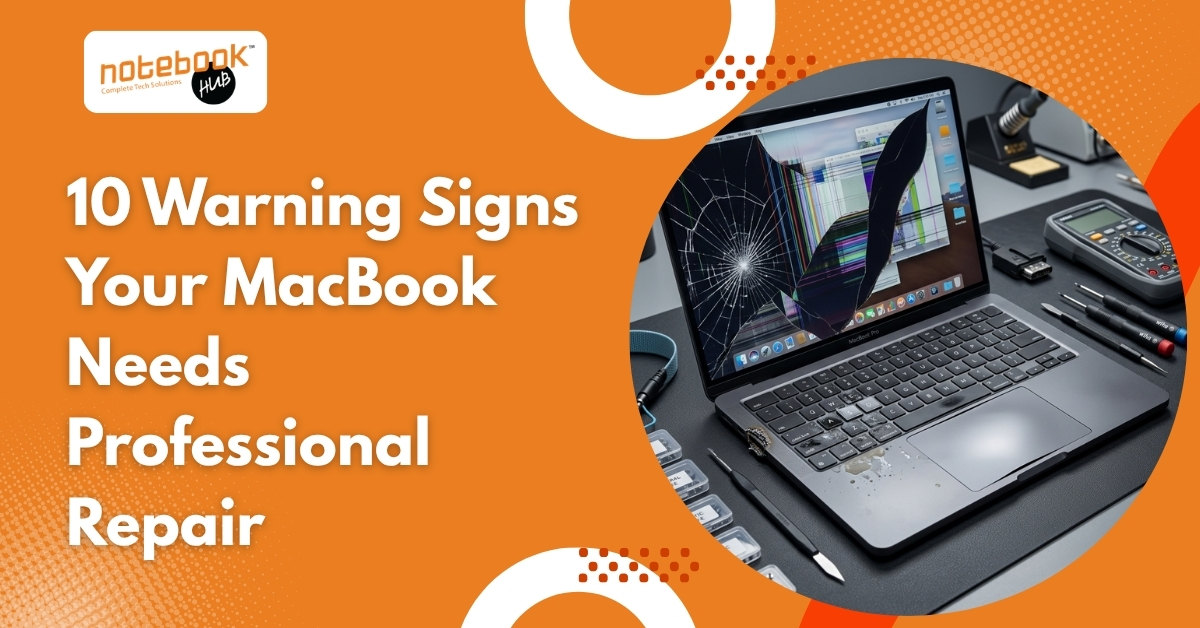
10 Warning Signs Your MacBook Needs Professional Repair

A MacBook rarely stops working without warning. In many cases, small issues start appearing weeks or even months before a major problem develops. You may notice faster battery drain, unusual heating, charging problems, or sudden performance drops and assume they are temporary. However, these symptoms can sometimes indicate underlying hardware or software issues that need attention. Recognizing these warning signs early can help prevent larger repair costs, unexpected breakdowns, and interruptions to your work. If your MacBook has been behaving differently lately, here are ten warning signs you should not ignore. Why You Shouldn’t Ignore MacBook Problems Many users continue using their MacBook despite small problems because the device still functions. However, issues that appear minor in the beginning can gradually affect performance and other components. Ignoring early symptoms may lead to: Higher repair costs later Reduced speed and performance Battery or motherboard-related problems Unexpected shutdowns during important work Risk of losing important files Shorter device lifespan Identifying problems early often gives you more repair options and may prevent additional damage. 1. Battery Draining Much Faster Than Normal Battery health naturally decreases over time, but sudden changes in battery performance should not be ignored. If your MacBook once lasted most of the day and now struggles to stay charged for a few hours, there may be an underlying battery issue. You may notice: Battery percentage is dropping rapidly Frequent charging throughout the day Unexpected shutdowns Service Battery notifications Device becoming warmer while charging A weak battery can affect overall system performance and eventually create charging or power-related issues. In some situations, professional MacBook battery replacement may be necessary to restore normal performance. You may like to read: MacBook Battery Draining Fast? Causes, Fixes, and When to Replace It 2. MacBook Is Running Extremely Slow A slow MacBook does not always mean the device is old. Performance issues can happen because of software problems, storage limitations, background processes, or hardware concerns. Slow performance often appears gradually. You may experience: Applications are taking longer to open Delays while switching between tasks Frequent loading icons System freezes during regular use Slow startup times If your MacBook feels slow even after updates and storage cleanup, a professional diagnosis may help identify the cause. 3. Overheating and Constant Loud Fan Noise MacBooks can become warm during gaming, video editing, or other demanding tasks. However, excessive heat during normal usage can indicate a problem. You may observe: Fans running loudly for long periods Device becoming hot while browsing Heat is building up during light work Reduced performance during use Sudden lagging or slow response Persistent MacBook overheating issues should not be ignored because continuous heat may place stress on internal components. 4. Screen Flickering, Black Screen, or Display Lines Display problems often start with small symptoms before becoming more noticeable. Occasional flickering or visual changes may not seem serious initially, but they can gradually become worse. Watch for signs such as: Horizontal or vertical lines Random screen flickering Sudden brightness changes Black screen during startup Display turning off unexpectedly If the problem continues, professional MacBook screen repair may be required depending on the cause. 5. Charging Problems Charging issues can quickly become frustrating because they affect daily productivity. Problems may come from the charger, battery, charging port, or internal components. Common signs include: Charger repeatedly connecting and disconnecting Battery charging slowly Charging stopping unexpectedly Device not recognizing the charger Battery percentage remaining stuck If changing adapters or cables does not solve the problem, a deeper inspection may be needed. Not Every Issue Starts With Obvious Physical Damage Some MacBook problems affect how the device behaves rather than how it looks. Random shutdowns, input issues, or unusual sounds can sometimes indicate deeper hardware concerns. Paying attention to these changes can help identify problems before they become more serious. 6. Random Restarts or Sudden Shutdowns Your MacBook should not restart or shut down unexpectedly regularly. Occasional software glitches can happen, but repeated incidents should not be overlooked. You may notice: Unexpected restarts Sudden shutdowns System crashes Reboot loops Screen freezing before shutdown These issues can sometimes affect system stability and may indicate software or hardware problems. 7. Keyboard or Trackpad Problems The keyboard and trackpad are used constantly, which makes even small issues noticeable very quickly. Problems often include: Keys are not responding properly Double-typing while entering text Sticky keys Trackpad becoming unresponsive Clicking problems If these issues continue, they can affect productivity and everyday use. 8. Strange Sounds Coming From Your MacBook MacBooks are generally designed to run quietly, which is why unusual sounds often attract attention immediately. You might hear: Clicking noises Buzzing sounds Internal vibration sounds Unusual fan noises Sounds during startup Strange noises should not be ignored because they can sometimes indicate developing hardware issues. 9. WiFi, Bluetooth, or Ports Stop Working Properly Connectivity issues can create problems during work and affect external devices you rely on every day. You may experience: Frequent WiFi disconnections Bluetooth pairing failures USB-C accessories not responding External drives are not being detected Ports working inconsistently If software updates and restarts do not solve the issue, a professional diagnosis may help identify the exact cause. 10. Liquid Spill or Physical Damage Accidental drops or liquid exposure do not always cause immediate failure. Sometimes the damage appears later through performance or hardware issues. Signs that should be checked include: Cracked display Dents or bent corners Keyboard issues after liquid exposure Unexpected screen behavior Random performance problems Getting the device checked early can help prevent additional internal damage. Quick Troubleshooting Steps Before Seeking Repair Before assuming your MacBook requires repair, try a few simple checks. Small software issues can sometimes create symptoms that look similar to hardware problems. Try the following: Restart your MacBook to clear temporary system processes Install pending macOS updates Check battery health in system settings Remove unnecessary files if storage is nearly full Run Apple Diagnostics Test another charger if charging issues appear If the same issue continues after these basic checks, professional inspection may be

Read More

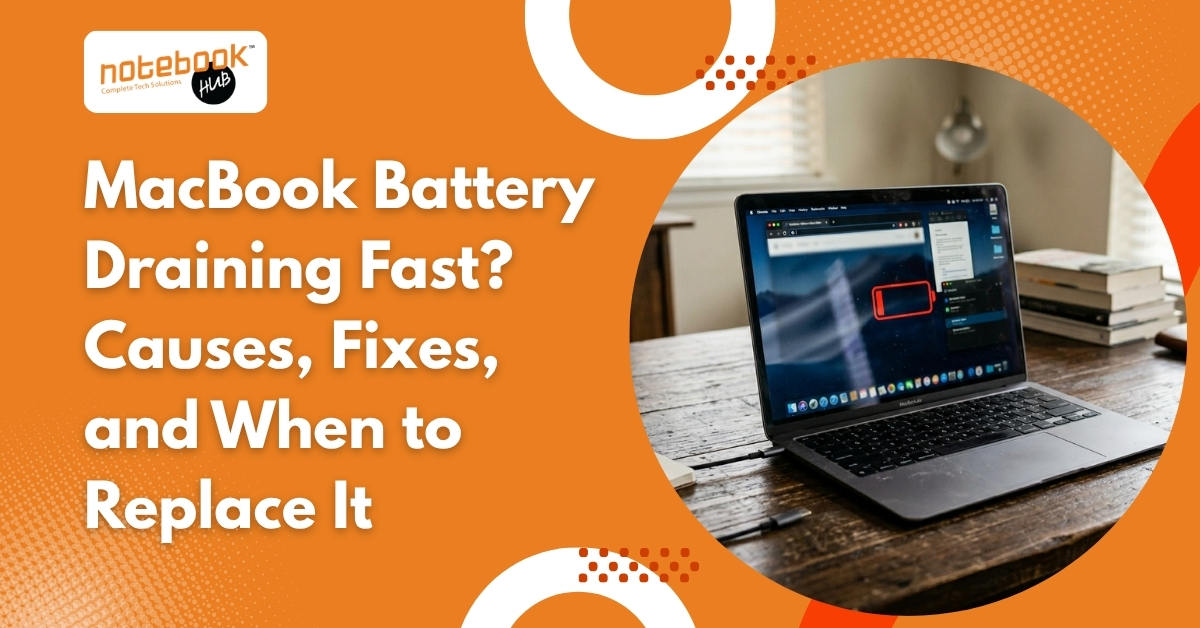
MacBook Battery Draining Fast? Causes, Fixes, and When to Replace It

Laptop
MacBook Battery Draining Fast? Causes, Fixes, and When to Replace It

Your MacBook used to last for hours without any problem. You could work, browse the internet, attend meetings, edit videos, or watch content without constantly checking the battery percentage. Then suddenly things change. The battery starts dropping quickly, your MacBook feels warmer than usual, and carrying a charger everywhere becomes necessary. If this has started happening recently, the first thought is usually that the battery is damaged. But fast battery drain does not always mean you need a replacement. Many things can affect battery performance, including background applications, system activity, heavy software, browser usage, and natural battery aging. In some situations, the problem is temporary. In others, your battery may actually be reaching the end of its lifespan. This guide covers the common reasons behind MacBook battery drain, practical fixes you can try, and signs that indicate when battery replacement may be necessary. How to Know If Your MacBook Battery Is Draining Faster Than Normal? Every battery gradually loses performance over time. However, some signs indicate that your MacBook may have a battery-related issue. Common symptoms include: Battery percentage is dropping unusually fast Charging your MacBook multiple times daily Device becoming warm during simple tasks Fans running continuously Sudden jumps in battery percentage Unexpected shutdowns Reduced battery backup compared to before For example, if your MacBook previously lasted around 8 to 10 hours during normal work and now struggles to reach even 3 to 4 hours with similar usage, something may be affecting performance. Common Reasons Why MacBook Battery Drains Fast Too Many Apps Running in the Background Many applications continue working even after you stop actively using them. You may minimize a window and assume an app has stopped working, but background activity often continues. Applications can still: Sync files Download updates Refresh content Send notifications Use CPU resources Common examples include: Cloud storage applications Messaging apps Video meeting tools Startup applications Multiple browser tabs When several applications keep running together, battery usage naturally increases. High Brightness and Power Settings Your display is one of the biggest battery-consuming components in a MacBook. Keeping screen brightness at maximum for long periods can noticeably affect battery performance. Other settings that may increase battery consumption include: Keyboard backlight Dynamic wallpapers External displays High performance settings Small adjustments can often improve battery life more than users expect. Battery Drain After macOS Updates Many users become concerned immediately after installing a macOS update because battery life suddenly drops. In most situations, the battery itself is not damaged. After updates, your MacBook often performs temporary background activities such as: Spotlight indexing iCloud synchronization Photo processing Internal optimization tasks These tasks temporarily increase battery usage and usually settle after one or two days. Why M1, M2, and M3 MacBooks Can Still Experience Battery Drain? Many users assume Apple Silicon MacBooks never face battery issues because they are known for strong battery performance. Although M1, M2, and M3 models are more power-efficient than older Intel-based systems, battery drain can still happen. Possible reasons include: Heavy browser usage Continuous video meetings Cloud syncing Editing applications Background processes Software compatibility issues Power efficiency helps, but usage habits still play an important role. Applications That Quietly Drain Battery Life Some applications naturally consume more resources than others. Common examples include: Google Chrome Adobe Photoshop Premiere Pro Zoom Video editing software Streaming platforms Cloud backup tools These applications can continue consuming resources even when you are not actively using them. If your MacBook becomes warm during simple tasks, background software may be contributing to the issue. Your Browser Could Be Draining More Battery Than You Think Many users focus on hardware issues and completely ignore browser impact. Different browsers use system resources differently. For example: Safari is optimized specifically for macOS Chrome may consume more memory when many tabs remain open Browser extensions can create additional background activity If you regularly keep 20 to 30 browser tabs open along with multiple extensions, browser usage alone can affect battery performance. Software and usage habits are common reasons behind battery drain, but if the issue continues even after reducing background activity, it may be time to look at the battery itself. Understanding Battery Health and Cycle Count Battery health and cycle count are important indicators of your MacBook battery condition. Battery health shows how much charging capacity remains compared to when the battery was new. Example: 100% battery health = original capacity 90% battery health = slight reduction 80% battery health = noticeable reduction Below 80% = battery performance may start affecting daily use Cycle count measures battery usage over time. Many users think one cycle means charging from 0% to 100%, but that is not exactly how it works. For example: Day 1: The battery drops from 100% to 50% Recharge back to 100% Day 2: The battery drops from 100% to 50% Recharge again Together, these equal one full charge cycle. Apple states that many modern MacBook batteries are designed to retain around 80% of their original capacity after reaching their expected cycle count. This helps explain why older devices gradually require more frequent charging. How to Find Which App Is Consuming Battery MacBook includes a built-in tool called Activity Monitor that helps identify applications consuming high power. Follow these steps: Open Applications Open Utilities Open Activity Monitor Select the Energy tab You can review: Energy Impact Average Energy Impact Applications consuming high power Applications showing consistently high energy usage may be affecting battery life. Once you understand what is consuming battery power, the next step is to reduce unnecessary activity before considering battery replacement. Fixes You Can Try Before Replacing Your Battery Check Battery Health Open: System Settings → Battery → Battery Health You may see: Normal The battery is functioning correctly. Service Recommended The battery may require professional attention. Enable Low Power Mode Low Power Mode reduces unnecessary background activity and helps improve battery performance. Close Unnecessary Apps and Browser Tabs Avoid keeping multiple applications and browser tabs open if they are not actively being used. Turn Off

Read More

Laptop Repair Cost in Pune: Full Price Guide for 2026

Laptop
Laptop Repair Cost in Pune: Full Price Guide for 2026

Laptop repair costs in Pune have increased steadily over the last few years, especially for premium laptops, gaming devices, and MacBooks. But the bigger problem is not the pricing itself. It’s the huge difference in quotations from one repair shop to another. A simple screen replacement may cost ₹3500 at one place and ₹8000 somewhere else. Some repair centres immediately suggest full motherboard replacement, while others repair the faulty section at a much lower cost. That leaves most people confused about one thing: How much should a laptop repair actually cost in Pune? This guide gives you a practical overview of common laptop and MacBook repair charges in Pune in 2026, along with what usually affects the final bill and where users often end up paying more than necessary. Basic Laptop Servicing Cost in Pune If your laptop is overheating, slowing down, making fan noise, or hanging frequently, basic servicing is usually the first recommendation. Most laptop servicing includes: internal cleaning fan cleaning thermal paste replacement dust removal basic performance check Average Laptop Servicing Charges Service Typical Pune Pricing Basic Laptop Servicing ₹1500 – ₹3000 Advanced Internal Cleaning ₹2000 – ₹4000 Gaming Laptop Servicing ₹2500 – ₹5000 MacBook Servicing ₹3000 – ₹6000 Some repair shops charge extra for diagnosis separately, especially for premium laptops and MacBooks. Laptop Screen Replacement Cost Cracked displays, black screens, display flickering, white patches, and vertical lines are among the most common laptop repair problems. Approximate Screen Replacement Pricing Laptop Type Average Cost Standard HD Screen ₹2500 – ₹5000 Full HD IPS Display ₹4500 – ₹8000 Gaming Laptop Display ₹7000 – ₹15000+ Touchscreen Laptop Display ₹8000 – ₹18000 MacBook Display Replacement ₹12000 – ₹45000+ The final cost depends on: laptop model panel quality screen size genuine part availability Laptop Battery Replacement Charges Battery performance naturally drops over time. If your laptop drains quickly, shuts down suddenly, or only works while charging, battery replacement may be required. Average Battery Replacement Cost in Pune Laptop Type Average Cost HP / Dell / Lenovo Battery ₹2000 – ₹5000 ASUS / Acer Battery ₹2500 – ₹6000 Gaming Laptop Battery ₹4000 – ₹9000 MacBook Battery Replacement ₹5000 – ₹18000 Premium ultrabooks and MacBooks usually have higher battery costs because of model-specific designs. Laptop Motherboard Repair Cost Motherboard repair is where pricing differences become very noticeable in Pune. Many authorised service centres recommend complete motherboard replacement even for smaller hardware faults. That can make repair costs extremely expensive. Experienced chip-level repair technicians often repair only the damaged section instead of replacing the entire board. Average Motherboard Repair Pricing Repair Type Average Cost Minor Circuit Repair ₹2500 – ₹5000 Power Section Repair ₹4000 – ₹8000 GPU / Graphics Repair ₹5000 – ₹12000 MacBook Logic Board Repair ₹8000 – ₹35000+ This is one area where proper diagnosis matters more than anything else. MacBook Repair Cost in Pune MacBook repairs are usually more expensive because Apple devices use premium hardware and compact internal designs. Common MacBook Repair Charges Repair Type Average Cost MacBook Diagnosis ₹500 – ₹1500 MacBook Servicing ₹3000 – ₹6000 Keyboard Repair ₹5000 – ₹20000 Battery Replacement ₹5000 – ₹18000 Display Replacement ₹12000 – ₹45000+ Liquid Damage Repair ₹10000 – ₹40000+ Many users in Pune end up paying high repair costs because some service providers directly recommend expensive replacements without checking repair possibilities first. Why Laptop Repair Prices Vary So Much in Pune? One of the biggest complaints among laptop users in Pune is the massive difference in repair quotations between service centres. A simple motherboard issue may be called “completely dead” at one place, while another technician may repair the same problem without replacing the entire board. The same thing happens with screen replacements, charging issues, liquid damage, and even MacBook servicing. Many authorised centres and premium repair shops follow a replacement-heavy approach, which naturally increases the final bill. In several cases, customers also end up paying high testing and inspection charges before the actual repair work even begins. Here’s a general idea of how common repair pricing looks across many laptop repair centres in Pune: Service Common Pune Market Pricing Laptop Testing & Inspection ₹500 – ₹1200 Advanced Hardware Diagnosis ₹800 – ₹1800 Laptop Servicing ₹1500 – ₹3000 MacBook Servicing ₹3000 – ₹6000 This is exactly why many users today compare not just repair pricing, but also the repair approach, diagnosis quality, and transparency before choosing a service centre. Why Many Pune Customers Prefer Notebook Hub At Notebook Hub, we focus on practical, transparent repair solutions rather than immediately suggesting expensive replacements. For many laptop and MacBook issues, proper diagnosis can often reduce unnecessary repair costs significantly. Compared to common market pricing in Pune, our starting charges are kept much more affordable for users looking for professional repair support without inflated servicing fees. Service Common Pune Market Pricing Our Starting Price Laptop Testing ₹500 – ₹1200 ₹350 Advanced Diagnosis ₹800 – ₹1800 ₹550 Laptop Servicing ₹1500 – ₹3000 ₹1000 MacBook Servicing ₹3000 – ₹6000 ₹2000 We provide repair support for HP, Dell, Lenovo, ASUS, Acer, gaming laptops, and Apple MacBooks, including motherboard repair, battery replacement, screen replacement, charging port repair, liquid damage repair, SSD upgrades, and complete servicing solutions. For users looking for detailed laptop repair support in Pune, explore our laptop repair services, where we’ve explained the repair process, supported brands, and available services in more detail. We also provide dedicated MacBook repair services in Pune for display issues, battery replacement, motherboard repair, liquid damage, and performance-related problems across multiple MacBook models. Final Thoughts Laptop repair costs in Pune can vary a lot, especially for motherboard issues, MacBook repairs, and display replacements. That’s why proper diagnosis matters before approving any expensive repair. Instead of blindly paying high replacement costs, it’s always better to choose a repair centre that offers transparent pricing and practical repair solutions. At Notebook Hub, we focus on reliable laptop and MacBook repairs with honest diagnosis, affordable servicing, and repair-first solutions for all major laptop brands.   Frequently Asked Questions 1. Why do laptop repair costs

Read More

Laptop Screen Flickering? Causes, Fixes, and Easy Solutions

Laptop, Tips & Tricks
Laptop Screen Flickering? Causes, Fixes, and Easy Solutions

A laptop screen that keeps flickering can make even simple tasks frustrating. Whether the display blinks occasionally, shows random lines, or flashes continuously, the issue can affect both work and everyday use. Laptop screen flickering on Windows 10 and Windows 11 usually happens because of display driver issues, incorrect refresh rate settings, overheating, software conflicts, or damaged hardware components. The good thing is that many of these problems can be fixed without replacing the laptop screen. While some flickering issues are temporary, repeated display problems can sometimes point to deeper hardware faults that should not be ignored. In this guide, let’s understand the common causes behind laptop screen flickering and the practical solutions that actually help. What Is Laptop Screen Flickering? Laptop screen flickering is a display problem where the screen starts blinking, flashing, dimming, or showing unstable visuals during use. The issue may happen continuously or appear occasionally while working, gaming, browsing, or watching videos. In some cases, the screen may show horizontal lines, sudden brightness changes, brief blackouts, or slight shaking effects. Users also notice flickering while opening certain applications, charging the laptop, adjusting the screen angle, or after system updates. Screen flickering can happen because of both software and hardware-related issues. Common software causes include outdated graphics drivers, incorrect display settings, refresh rate problems, or application conflicts. Hardware-related causes may involve loose display cables, overheating, screen damage, or graphics card issues. While minor flickering problems can often be fixed through troubleshooting, repeated or severe display issues should not be ignored, as they may indicate deeper hardware faults. Common Signs of Laptop Screen Flickering Screen flickering does not always look the same. The symptoms often depend on what is causing the issue. Some common signs include: Screen blinking on and off Horizontal or vertical display lines Random brightness fluctuations Black screen flashes for a second Flickering while gaming Display shaking or vibrating Screen flickering while charging Flickering only in certain apps or browsers Screen flashing when moving the laptop lid If the display flickers even during startup, the issue is usually related to hardware rather than software. What Causes Laptop Screen Flickering? Outdated or Corrupted Display Drivers Display drivers help the operating system communicate with the laptop’s graphics hardware. If these drivers become outdated, corrupted, or incompatible after updates, the screen may start flickering. This problem is especially common after Windows 10 or Windows 11 updates. Incorrect Refresh Rate Settings Every laptop screen supports specific refresh rates. If the refresh rate is set incorrectly, the display may become unstable and start blinking or flickering. Gaming laptops with higher refresh rate displays are especially more likely to face this issue after display settings are changed. Software or Application Conflicts Sometimes, certain applications conflict with the graphics driver and cause screen flickering. This problem is commonly noticed in browsers, editing software, or gaming applications that use hardware acceleration. If the flickering happens only while using a specific app, the software itself may be responsible. Loose or Damaged Display Cable Inside the laptop, a display cable connects the screen to the motherboard. Since the cable passes through the hinge area, continuous opening and closing of the lid can slowly damage or loosen the connection. If the screen flickers more while adjusting the laptop angle, the display cable may be the problem. Overheating Issues Excessive heat can affect graphics performance and display stability. Dust buildup, blocked cooling vents, and long gaming sessions can cause the GPU temperature to rise significantly. When overheating becomes severe, the laptop may show screen flickering, freezing, or graphical glitches. You may like to read: Laptop Overheating? 10 Proven Solutions to Fix It Faulty Graphics Card or Screen Damage If software troubleshooting does not solve the issue, the problem may be related to hardware components, such as: graphics card motherboard display panel Physical damage, accidental drops, or liquid exposure can also affect screen performance and cause flickering problems. Practical Solutions to Fix Laptop Screen Flickering Before replacing the screen or visiting a repair center, try these troubleshooting methods. Restart the Laptop Temporary system glitches can sometimes affect display performance. Restarting the laptop refreshes drivers and background processes, which may solve the issue immediately. Update the Graphics Driver Updating display drivers is one of the most effective fixes for screen flickering. To update display drivers: Right-click the Start button Open Device Manager Expand Display Adapters Right-click the graphics driver Select Update Driver If updating does not help, reinstall the driver completely and restart the laptop. Adjust the Refresh Rate Incorrect refresh rate settings can make the display unstable. To check refresh rate settings: Open Settings Go to Display Open Advanced Display Settings Select the recommended refresh rate The steps may vary slightly between Windows 10 and Windows 11, but the settings are usually available under Advanced Display Settings. Most standard laptops work best at 60Hz unless the display supports higher refresh rates. Check Whether Task Manager Also Flickers This is a simple way to identify whether the issue is software-related. Steps: Press Ctrl + Shift + Esc to open Task Manager Observe the screen carefully If Task Manager also flickers, the graphics driver may be causing the issue If only the rest of the screen flickers, certain apps or software conflicts could be responsible Start the Laptop in Safe Mode Safe Mode loads only essential drivers and services. If the flickering stops in Safe Mode, the issue is most likely related to: graphics drivers startup programs third-party applications Safe Mode is useful for diagnosing screen flickering problems in both Windows 10 and Windows 11 laptops. This helps narrow down the actual cause of the problem. Disable Hardware Acceleration Hardware acceleration can sometimes create display issues in browsers and apps. You can disable it in: Google Chrome Microsoft Edge Discord editing software streaming applications This fix is especially useful if the flickering happens only while using specific software. Connect an External Monitor Using an external monitor helps identify whether the issue is related to the laptop screen or the

Read More

HP Vs Dell Laptop For Office Work In 2026

Laptop
HP Vs Dell Laptop For Office Work In 2026

Office work in 2026 runs on fast performance and smooth multitasking. Whether it’s working on large Excel sheets, jumping between video calls, replying to emails, or handling multiple apps at once, your laptop quietly decides how easy or stressful your day feels. HP and Dell are still among the most trusted names when it comes to office laptops, each offering a solid range built for everyday professional use. Both do the job well, but they suit slightly different types of users depending on workload and expectations. This comparison focuses on real day to day office needs, budget comfort, and long term usage, so you can get a clear idea of which one actually fits your working style especially in the Indian market. Why Is a Comparison Between HP and Dell Important in 2026?   Office work in 2026 involves heavy multitasking, constant video meetings, and cloud based tools running throughout the day. Because of this, the choice between HP and Dell is no longer just about brand preference it directly affects daily productivity and long term performance, making a clear comparison important before buying. HP is usually preferred for its lightweight design, stylish look, and budget friendly options, making it suitable for everyday office tasks. Dell, on the other hand, is widely used in corporate environments for its strong build quality and consistent performance during long working hours. Both are good choices, but the right one depends on how demanding your daily work is. What Are the Key Differences Between HP and Dell for Office Work?  Performance for Daily Office Tasks and Multitasking  For everyday office tasks like Microsoft Excel, Zoom meetings, web browsing, and multitasking, both HP and Dell perform well when equipped with modern processors (Intel i5/i7 or Ryzen 5/7). However, Dell laptops especially their business series are slightly more optimized for consistent performance during long working hours.  If your job involves heavy multitasking or data processing, Dell often feels more stable over time. HP, on the other hand, performs excellently for light to moderate workloads and is perfect for general office use. To better understand real world productivity requirements, you can refer to official and essential collaboration tools for business productivity for system and workflow expectations, and the Zoom system requirements to check performance needs for smooth video meetings. Battery Life and All Day Usage for Office Work  Battery life is crucial, especially if you work remotely or travel frequently. HP laptops generally offer good battery optimization for daily office tasks. Dell laptops, particularly premium models, often deliver more consistent battery performance over long term usage. If you need a laptop that lasts through long meetings and travel days, Dell has a slight edge but HP is still very competitive. Build Quality and Long Term Durability for Daily Use  This is where a major difference appears. Dell laptops, especially business focused series, are known for solid build quality and durability. HP laptops vary depending on the model premium series are well built, but budget models may feel less sturdy. If you’re someone who uses your laptop for 8–10 hours daily or carries it frequently, durability becomes important and Dell usually wins here. Keyboard Comfort and Typing Experience for Professionals  For office work, typing comfort matters more than most people realize. Dell keyboards are often praised for their tactile feedback and long typing sessions. HP keyboards are comfortable too but may feel slightly softer depending on the model. If your work involves a lot of typing (emails, reports, documentation), Dell provides a more consistent experience. HP and Dell Laptop Prices in India   Pricing is a key factor when choosing between HP and Dell for office work. ₹35,000 – ₹50,000: HP offers better options with higher value for basic tasks like emails, browsing, and meetings. ₹50,000 – ₹80,000: Both brands compete closely HP provides better specs for the price, while Dell focuses on durability and stability. ₹80,000+: Dell stands out with premium build quality and long term reliability, making it ideal for professionals. HP vs Dell Laptop Comparison  Factor HP Laptops Dell Laptops Performance Best for light to moderate office tasks More stable for heavy multitasking & long hours Battery Life Good for daily office use Slightly better consistency for full day work Build Quality Good in premium models, average in budget Strong and durable across business series Keyboard Experience Comfortable, slightly softer feel More tactile, better for long typing work Pricing (India) More budget friendly options Slightly expensive but better long term value Which Are the Best HP and Dell Laptop Series for Work in 2026? HP Series to Consider HP offers a strong range of laptops for work, including the EliteBook series designed for business professionals who need reliability and performance, the ProBook series, which is ideal for budget conscious office users, and the Envy series that combines premium design with powerful performance for demanding tasks. Explore top HP laptop series that are designed to match different office work needs and budgets, whether you are working in IT, business operations, or remote roles in the Hinjewadi tech ecosystem. With long working hours, heavy multitasking, and constant system usage, having the right laptop becomes even more important for smooth productivity, especially when exploring options from the best HP laptop store in Hinjewadi.   Dell Series to Consider Dell offers a versatile range of laptops to suit different office needs. The Latitude series is widely used in corporate offices for its reliability and business focused features, while the XPS series is a premium choice designed for professionals who want top performance and sleek design. For users looking for affordable yet capable options, the Inspiron series serves as a budget friendly solution for everyday office work. Explore a wide range of Dell laptop series designed to match every office and professional requirement, whether you are working in IT companies, startups, or corporate offices across the Hinjewadi region. Hinjewadi, one of Pune’s major IT hubs, is home to a large workforce of professionals engaged in fast paced tech and corporate roles, making

Read More

Best MacBook Accessories for Everyday Use in 2026

Laptop
Best MacBook Accessories for Everyday Use in 2026

A MacBook usually feels complete the day you buy it. The display is sharp, battery life is dependable, and the overall experience feels polished enough that very little appears missing at first. That changes once the device becomes part of everyday work. Connecting external storage, managing multiple devices, carrying it daily, or spending long hours at a desk quickly reveal a few practical gaps that only become noticeable with regular use. That is where the right accessories begin to matter. Some solve the limitations of minimal ports, some improve comfort during long work sessions, and some simply help protect a device that most users rely on every day. The best MacBook accessories are not about adding more around the laptop. They are about making daily use smoother in ways that become obvious only after the MacBook settles into your routine Where the MacBook Starts Feeling Limited in Everyday Use? 1. USB-C Hub: Why Port Expansion Still Sits at the Top of Every MacBook Setup A MacBook’s minimal port layout looks clean, but practical work often needs more flexibility than the device offers on its own. Connecting an external display, reading memory cards, attaching storage, or using older accessories usually leads to one immediate requirement: a USB-C hub. A reliable hub quickly becomes useful because it allows one connection to manage several daily tasks: HDMI for monitors and presentations USB-A for existing drives and accessories SD card support for quick file transfer pass-through charging while working For many users, this is the first accessory that makes everyday MacBook use noticeably easier. 2. External SSD: Storage Feels Fine Until Larger Files Become Part of Your Routine Internal storage often feels sufficient in the beginning, but once project folders, media files, offline documents, and backups begin to accumulate, space disappears faster than expected. That is why external SSDs remain one of the smartest long-term accessories for MacBook users. They make it easier to manage larger files without relying entirely on expensive internal upgrades. They are especially useful for: photo libraries video projects archived work presentations backup folders The practical benefit is simple: the MacBook stays lighter internally while larger files remain accessible when needed. 3. Multi-Port Charger: One Charger Often Ends Up Replacing an Entire Travel Setup A better charger matters even more when charging habits become part of a daily routine, especially since long-term battery care depends on using appropriate power support and charging behaviour. Apple also explains how battery performance changes over time through its Mac battery health guidance. A compact high-output charger simplifies this because one unit can usually handle: MacBook iPhone AirPods iPad This becomes especially useful for travel, where fewer cables make a noticeable difference. The Accessories That Change Long Work Sessions the Most 4. Laptop Stand: Why It Becomes Useful Sooner Than Expected A MacBook works well on a desk, but the screen naturally sits lower than ideal for long hours. Over time, that creates a posture issue that many users only notice after regular daily use. A stand lifts the display closer to eye level and improves airflow under the device, making long writing sessions, editing work, and meetings more comfortable. 5. External Keyboard: Why Desk Work Feels Better Once the Screen Is Elevated Once the screen is elevated, typing directly on the built-in keyboard becomes less practical. An external keyboard improves hand position and creates a more natural desk setup, especially for users who spend several hours writing, editing, coding, or managing documents. 6. Wireless Mouse: Why Precision Work Still Feels Better Beyond the Trackpad The MacBook trackpad remains excellent, but certain tasks still become easier with a dedicated mouse. This becomes obvious during: spreadsheet navigation design adjustments presentation editing detailed file organisation For users who work full days on a MacBook, this often improves comfort more than expected. Protection Choices Matter More With a Device You Carry Every Day 7. Sleeve: Why It Still Offers the Most Practical Everyday Protection MacBooks are slim enough to carry easily, but that also means they are more exposed to scratches, pressure, and contact inside bags. A sleeve remains one of the most practical protection choices because it protects during transport without affecting how the laptop feels during use. 8. Skin: Surface Protection Without Changing the Original Feel For users who want protection without visible bulk, a skin helps preserve the aluminum body from scratches, fingerprints, and desk wear while keeping the MacBook’s original profile intact. 9. Hard Shell Case: When Constant Surface Protection Makes More Sense A hard shell case protects the body while the MacBook is being used, which helps if the laptop is regularly moved across desks or shared workspaces. The main advantage is constant body coverage, provided the case remains lightweight. When a MacBook Starts Feeling Like a Complete Workstation? 10. External Monitor: Why More Screen Space Changes How You Work A MacBook display is excellent, but once several tasks need attention together, the screen size becomes limiting. An external monitor helps immediately with: side-by-side writing and research spreadsheet work editing timelines meetings with active notes For many users, this is the accessory that changes the MacBook from a laptop into a full desk setup. 11. Docking Station: Why One-Cable Setup Feels Instantly Better As accessories increase, reconnecting everything separately starts to feel repetitive. A docking station allows one cable to handle charging, display output, storage, and connected accessories together, which makes moving between desk use and portability much cleaner. Final Thoughts A MacBook rarely needs many accessories at once, but the right ones become valuable because they solve the exact points where everyday use starts feeling less smooth. Better connectivity, smarter storage, practical protection, and improved comfort all matter because they remove small interruptions that repeat over time. The strongest setups are rarely built around buying more. They are built around understanding which accessories quietly make the MacBook easier to use every day. That is what makes a good MacBook accessory worth buying in the first place. Find the Right MacBook Accessories

Read More

Why Laptop Hinges Break and How to Avoid Costly Repairs?

Laptop
Why Laptop Hinges Break and How to Avoid Costly Repairs?

If your laptop feels unusually hot during summer, slows down without warning, or the fan starts running constantly, overheating is usually the reason. In most cases, the issue stems from restricted airflow, dust in cooling vents, heavy background applications, or high room temperature. The good news is that early action can often prevent bigger hardware problems and help your laptop perform smoothly through the hotter months. Summer Heat Puts Extra Pressure on Laptop Cooling Systems Laptops are designed to release heat through internal fans and side or bottom vents. During summer, that cooling process becomes less efficient because the surrounding air is already warm. This is why many users notice overheating while attending video calls, charging the laptop, editing files, streaming content, or simply working for long hours in the afternoon. Even if a laptop performed normally in cooler weather, summer often reveals hidden cooling problems that were already developing inside. Dust Inside the Laptop Is One of the Biggest Hidden Causes Dust collects gradually inside vents, around fan blades, and near the heat sink. Once airflow becomes restricted, heat remains trapped inside and internal temperatures rise quickly. Many people only notice the problem when the fan becomes unusually loud or the keyboard starts feeling warm during basic use. Regular cleaning of external vents helps, but older laptops often need internal dust removal for better airflow. Poor Surface Placement Can Raise Temperature Faster Than Expected Using a laptop on a bed, cushion, blanket, or lap blocks the air vents underneath. Without proper ventilation, hot air has nowhere to escape, and the internal cooling system struggles to maintain safe temperature levels. A hard, flat surface always helps improve cooling efficiency. Background Apps Quietly Increase Processor Heat One of the most common causes of overheating is high processor activity from background software. Cloud syncing, software updates, browser tabs, antivirus scans, and video conferencing tools all increase CPU usage, even when you are not actively using them. Checking Task Manager regularly helps identify which applications are creating unnecessary load. Charging Habits Also Affect Laptop Temperature Charging naturally generates heat because the battery and motherboard process power together. In summer, that heat becomes more noticeable when the laptop is also handling demanding tasks like video calls, downloads, or editing work. Using an original charger matters because unstable charging can increase temperature and affect battery health over time. You may like to read: Do’s and Don’ts to Follow While Charging Your Laptop  Why Older Laptops Heat More During Summer Older laptops often struggle more because internal thermal paste loses effectiveness over time. Thermal paste helps transfer heat from the processor to the cooling system. Once it dries out, heat stays concentrated around the processor, and cooling performance drops. This is one reason why a laptop that worked well for years may suddenly begin heating during warmer months. How Can You Tell If Your Laptop Is Overheating? A laptop usually gives several warning signs before overheating becomes serious. Common symptoms include: Fan running loudly for long periods Keyboard or base becoming unusually hot Slow response during normal work Sudden lag while browsing Battery draining faster Unexpected shutdowns Screen freezing during multitasking If these signs appear regularly, it usually means the cooling system needs attention. Simple Ways to Reduce Laptop Heating at Home A few small habits can make a noticeable difference. Keep vents clean – Use compressed air carefully near the side and bottom vents to remove dust buildup. Reduce startup programs – Too many apps opening automatically increases processor activity from the moment the laptop starts. Lower brightness when possible – Screen brightness also adds to power consumption and heat generation. Avoid direct sunlight – Even indirect sunlight on the laptop body raises the internal temperature faster than expected. Use balanced power settings – Power-saving modes reduce heat during everyday tasks. Cooling Pads and Laptop Stands Make a Real Difference Cooling pads are especially useful in hot weather because they improve airflow below the laptop. A laptop stand also helps by slightly lifting the device and allowing heat to escape more easily. Users working long hours, attending online meetings, or editing content often notice better stability after adding external cooling support. Software Updates Can Also Improve Thermal Performance Many laptop brands release BIOS and driver updates that improve fan response and thermal control. An outdated system may not manage processor load efficiently, especially during multitasking. Keeping the operating system and drivers updated helps maintain stable performance. You may like to read: Laptop Overheating? 10 Proven Solutions to Fix It  When Professional Inspection Necessary? If heating continues even after basic fixes, internal servicing is often the next step. A technician usually checks: Internal fan condition Dust near the heat sink Thermal paste condition Battery health Heat concentration around motherboard components Early servicing often prevents larger repair costs later. Why Ignoring Overheating Can Shorten Laptop Life ? Heat affects every important internal component over time. Battery cells weaken faster, SSD efficiency can drop, motherboard stress increases, and processor performance becomes unstable. What starts as mild heating can eventually lead to shutdowns, charging problems, or expensive hardware failure. Final Thought Laptop overheating during summer usually starts with small warning signs that many users ignore until performance drops noticeably. Simple maintenance, proper airflow, careful charging habits, and suitable accessories often help a laptop stay stable through the hottest months. If heating continues, early technical attention is always better than waiting for a larger issue.  Need Reliable Cooling Accessories or Laptop Support in Pune? If your laptop continues heating even after basic cleaning and airflow improvements, the issue may need deeper inspection or the right accessories. From cooling pads and original chargers to practical daily-use solutions, users looking for dependable repair services and laptop dealer support through Notebook Hub can explore suitable laptop accessories in Pune based on usage, device type, and performance needs.    Disclaimer- This article is published on behalf of Notebook Hub for general informational purposes only. Laptop overheating can vary depending on device age, internal

Read More

Laptop Overheating in Summer? Common Causes and Easy Ways to Fix

Laptop
Laptop Overheating in Summer? Common Causes and Easy Ways to Fix

If your laptop feels unusually hot during summer, slows down without warning, or the fan starts running constantly, overheating is usually the reason. In most cases, the issue stems from restricted airflow, dust in cooling vents, heavy background applications, or high room temperature. The good news is that early action can often prevent bigger hardware problems and help your laptop perform smoothly through the hotter months. Summer Heat Puts Extra Pressure on Laptop Cooling Systems Laptops are designed to release heat through internal fans and side or bottom vents. During summer, that cooling process becomes less efficient because the surrounding air is already warm. This is why many users notice overheating while attending video calls, charging the laptop, editing files, streaming content, or simply working for long hours in the afternoon. Even if a laptop performed normally in cooler weather, summer often reveals hidden cooling problems that were already developing inside. Dust Inside the Laptop Is One of the Biggest Hidden Causes Dust collects gradually inside vents, around fan blades, and near the heat sink. Once airflow becomes restricted, heat remains trapped inside and internal temperatures rise quickly. Many people only notice the problem when the fan becomes unusually loud or the keyboard starts feeling warm during basic use. Regular cleaning of external vents helps, but older laptops often need internal dust removal for better airflow. Poor Surface Placement Can Raise Temperature Faster Than Expected Using a laptop on a bed, cushion, blanket, or lap blocks the air vents underneath. Without proper ventilation, hot air has nowhere to escape, and the internal cooling system struggles to maintain safe temperature levels. A hard, flat surface always helps improve cooling efficiency. Background Apps Quietly Increase Processor Heat One of the most common causes of overheating is high processor activity from background software. Cloud syncing, software updates, browser tabs, antivirus scans, and video conferencing tools all increase CPU usage, even when you are not actively using them. Checking Task Manager regularly helps identify which applications are creating unnecessary load. Charging Habits Also Affect Laptop Temperature Charging naturally generates heat because the battery and motherboard process power together. In summer, that heat becomes more noticeable when the laptop is also handling demanding tasks like video calls, downloads, or editing work. Using an original charger matters because unstable charging can increase temperature and affect battery health over time. You may like to read: Do’s and Don’ts to Follow While Charging Your Laptop  Why Older Laptops Heat More During Summer Older laptops often struggle more because internal thermal paste loses effectiveness over time. Thermal paste helps transfer heat from the processor to the cooling system. Once it dries out, heat stays concentrated around the processor, and cooling performance drops. This is one reason why a laptop that worked well for years may suddenly begin heating during warmer months. How Can You Tell If Your Laptop Is Overheating? A laptop usually gives several warning signs before overheating becomes serious. Common symptoms include: Fan running loudly for long periods Keyboard or base becoming unusually hot Slow response during normal work Sudden lag while browsing Battery draining faster Unexpected shutdowns Screen freezing during multitasking If these signs appear regularly, it usually means the cooling system needs attention. Simple Ways to Reduce Laptop Heating at Home A few small habits can make a noticeable difference. Keep vents clean – Use compressed air carefully near the side and bottom vents to remove dust buildup. Reduce startup programs – Too many apps opening automatically increases processor activity from the moment the laptop starts. Lower brightness when possible – Screen brightness also adds to power consumption and heat generation. Avoid direct sunlight – Even indirect sunlight on the laptop body raises the internal temperature faster than expected. Use balanced power settings – Power-saving modes reduce heat during everyday tasks. Cooling Pads and Laptop Stands Make a Real Difference Cooling pads are especially useful in hot weather because they improve airflow below the laptop. A laptop stand also helps by slightly lifting the device and allowing heat to escape more easily. Users working long hours, attending online meetings, or editing content often notice better stability after adding external cooling support. Software Updates Can Also Improve Thermal Performance Many laptop brands release BIOS and driver updates that improve fan response and thermal control. An outdated system may not manage processor load efficiently, especially during multitasking. Keeping the operating system and drivers updated helps maintain stable performance. You may like to read: Laptop Overheating? 10 Proven Solutions to Fix It  When Professional Inspection Necessary? If heating continues even after basic fixes, internal servicing is often the next step. A technician usually checks: Internal fan condition Dust near the heat sink Thermal paste condition Battery health Heat concentration around motherboard components Early servicing often prevents larger repair costs later. Why Ignoring Overheating Can Shorten Laptop Life ? Heat affects every important internal component over time. Battery cells weaken faster, SSD efficiency can drop, motherboard stress increases, and processor performance becomes unstable. What starts as mild heating can eventually lead to shutdowns, charging problems, or expensive hardware failure. Final Thought Laptop overheating during summer usually starts with small warning signs that many users ignore until performance drops noticeably. Simple maintenance, proper airflow, careful charging habits, and suitable accessories often help a laptop stay stable through the hottest months. If heating continues, early technical attention is always better than waiting for a larger issue.  Need Reliable Cooling Accessories or Laptop Support in Pune? If your laptop continues heating even after basic cleaning and airflow improvements, the issue may need deeper inspection or the right accessories. From cooling pads and original chargers to practical daily-use solutions, users looking for dependable repair services and laptop dealer support through Notebook Hub can explore suitable laptop accessories in Pune based on usage, device type, and performance needs.    Disclaimer- This article is published on behalf of Notebook Hub for general informational purposes only. Laptop overheating can vary depending on device age, internal

Read More
  • 1
  • 2
  • …
  • 4

Recent Posts

  • Laptop Motherboard Problems: 7 Early Signs, Causes & Repair Solutions
  • Laptop Not Charging? 8 Common Causes and How to Fix Them
  • 10 Warning Signs Your MacBook Needs Professional Repair
  • MacBook Battery Draining Fast? Causes, Fixes, and When to Replace It
  • Laptop Repair Cost in Pune: Full Price Guide for 2026

Categories

  • Desktop
  • Laptop
  • Mobile
  • Tablet
  • Tips & Tricks

Popular Posts

  • Top 10 Best Tablets Under ₹25,000 in India (2026 Edition)
    Tablet, Tips & Tricks

    Top 10 Best Tablets Under ₹25,000 in India (2026 Edition)

  • Samsung S26 Ultra Hidden Features and Tricks Most Users Miss
    Mobile, Tips & Tricks

    Samsung S26 Ultra Hidden Features and Tricks Most Users Miss

  • Laptop Repair Cost in Pune: Full Price Guide for 2026
    Laptop

    Laptop Repair Cost in Pune: Full Price Guide for 2026

Sign Up For Newsletters

Get E-mail updates about our latest shop and special offers.

Call Us: +91 9373634805

Quick Links

  • Home
  • About Us
  • Contact
  • Wishlist
  • Order Tracking

Categories

  • Laptops
  • Desktops
  • Mobiles
  • Tablets
  • Accessories

Policy

  • Terms of Use
  • Pricing and Payment Policy
  • Shipping and Delivery Policy
  • Cancellation and Return Policy
Notebook Hub

@ 2026 Notebook Hub. All Rights Reserved.

Designed and Developed by The Branding Tales

×

Table of Contents

    • Store
    • Search
    • Account
    • Categories