
Notebook Hub
All Departments
  • Laptops
  • Desktops
  • Mobiles
  • Tablets
  • Accessories
  • Home
  • Laptops
  • Mobiles
  • Tablets
  • Accessories
  • Blog
  • Contact

@ 2026 Notebook Hub. All Rights Reserved.

Designed and Developed by The Branding Tales

Notebook Hub
Sign In
Account
0
0
Total
₹0

No products in the cart.

Free Shipping on All Orders Over $75
All Departments
  • Laptops
  • Desktops
  • Mobiles
  • Tablets
  • Accessories
  • Home
  • Laptops
  • Mobiles
  • Tablets
  • Accessories
  • Blog
  • Contact
Only this weekend
Super Discount

Items on sale this week

Top picks this week. Up to 50% off the best selling products.

Lenovo Tab M9-TB 310XU  |  9 Inch Full HD Display

Lenovo Tab M9-TB 310XU | 9 Inch Full HD Display

₹21,000 ₹11,999
Lenovo Tab M9-TB 310XU  |  9 Inch Full HD Display | 3GB RAM, 32 GB Storage

Lenovo Tab M9-TB 310XU | 9 Inch Full HD Display | 3GB RAM, 32 GB Storage

₹18,000 Original price was: ₹18,000.₹10,499Current price is: ₹10,499.
Lenovo Tab P12 | 12.7 Inch 3K Display | 8GB RAM, 256GB Storage

Lenovo Tab P12 | 12.7 Inch 3K Display | 8GB RAM, 256GB Storage

₹42,000 Original price was: ₹42,000.₹24,999Current price is: ₹24,999.
Lenovo Tab K11 (TB 330FU) | 10.95 Inch FHD Display | 8GB RAM, 128GB Storage

Lenovo Tab K11 (TB 330FU) | 10.95 Inch FHD Display | 8GB RAM, 128GB Storage

₹31,000 Original price was: ₹31,000.₹16,499Current price is: ₹16,499.
Lenovo Tab M9-TB 310FU |  9 Inch Full HD Display | 4GB RAM, 64 GB Storage

Lenovo Tab M9-TB 310FU | 9 Inch Full HD Display | 4GB RAM, 64 GB Storage

₹18,000 Original price was: ₹18,000.₹10,499Current price is: ₹10,499.
Lenovo Tab M9 | ZAC40076IN | 9 Inch Full HD Display | 4GB RAM, 64 GB Storage

Lenovo Tab M9 | ZAC40076IN | 9 Inch Full HD Display | 4GB RAM, 64 GB Storage

₹20,000 Original price was: ₹20,000.₹12,999Current price is: ₹12,999.
Notebook Hub
0
Total
₹0

No products in the cart.

Free Shipping on All Orders Over $75

Laptop SSD Not Detected? Causes, Diagnosis, and Data Recovery Options

Laptop
Laptop SSD Not Detected? Causes, Diagnosis, and Data Recovery Options

When your laptop suddenly fails to detect its SSD, you may find yourself unable to start Windows, access important files, or continue your work. The problem can arise from loose connections, incorrect BIOS settings, Windows errors, corrupted partitions, hardware compatibility issues, or SSD failure.  Understanding the cause can help you choose the right solution without putting your valuable data at unnecessary risk. This guide covers the common reasons an SSD goes undetected, practical troubleshooting steps, and available data recovery options. But does an undetected SSD always mean your data is lost? Not necessarily. Sometimes, a simple connection issue or incorrect setting is responsible. However, repeated disconnections, system freezes, or an SSD missing from BIOS may indicate a more serious problem. Why Is Your Laptop SSD Not Detected? If an SSD appears in BIOS but not File Explorer, Windows may have a partition or drive-letter issue. If it is also absent from BIOS, suspect compatibility, connection, firmware, or hardware. One useful clue is timing. If the SSD disappeared immediately after an upgrade, check supported capacity, slot compatibility, and installation before assuming failure. Loose Connections or an Unsupported SSD A SATA SSD may disappear because of a faulty cable or connector. An M.2 drive may be improperly seated, and some M.2 slots support SATA or NVMe, not both. BIOS or UEFI Settings If your laptop does not detect the SSD, checking the BIOS or UEFI settings can help determine whether the drive is recognised by the system. Understanding how BIOS and UEFI work can help you identify basic detection issues before proceeding with further troubleshooting. Driver, Windows, or Partition Problems A driver issue, missing drive letter, offline disk, or damaged partition may hide an SSD in Windows. A new drive may need setup. These problems differ from firmware failing to detect the drive. SSD Firmware or Hardware Failure Controller or firmware faults, laptop overheating, liquid, power problems, or physical damage can make an SSD disappear. Repeated disconnections, freezes, or incorrect capacity readings may signal failure. How Can You Diagnose an SSD That Is Not Detected? Start with non-invasive checks before changing settings or attempting repairs. The purpose is to determine whether the problem comes from the laptop, the SSD connection, Windows, or the storage device itself. Step 1: Check Where the SSD Appears Open File Explorer and check whether the drive is listed. If it is missing, open Disk Management and look for the SSD. If it appears there, note its status without initializing, formatting, or creating a new volume. If the SSD is missing from Windows, check whether it appears in BIOS or UEFI. The exact menu names vary by laptop manufacturer. Step 2: Check Connections and Compatibility If the laptop has recently been repaired, upgraded, or moved, a connection problem may be worth investigating. Internal inspection should be performed only when you are comfortable handling laptop components safely; otherwise, seek technical assistance. For a SATA or NVMe SSD, any replacement, enclosure, or alternate slot must support the drive’s interface and physical format. Step 3: Review BIOS Settings Carefully Confirm whether BIOS or UEFI recognizes the SSD. If it does, the issue may be related to boot configuration or Windows rather than complete drive failure. Avoid resetting firmware settings or switching storage modes without understanding the existing configuration. Incorrect changes can create additional boot problems. Step 4: Decide Whether to Continue If the SSD appears healthy and contains no important unbacked-up files, further software troubleshooting may be reasonable. However, if it disappears repeatedly, reports an incorrect capacity, causes system freezes, or contains irreplaceable data, stop experimenting and seek professional diagnosis. What Are the Safe Fixes for an Undetected SSD? The appropriate fix depends on the diagnosis. There is no universal solution for every SSD that disappears from a laptop. Assign a Drive Letter When Appropriate If the SSD is detected in Disk Management and the existing partition appears healthy but lacks a drive letter, assigning one may restore access. Do not create a new partition or format the drive if it contains files you need to preserve. Update Drivers Only When Necessary If Windows detects the drive but cannot access it correctly, an appropriate storage or chipset driver may help. Download updates from the laptop or component manufacturer’s official support page. Driver changes will not repair a physically failed SSD. Inspect Hardware Professionally If the SSD is absent from BIOS or UEFI, checking the compatible connection, slot, or motherboard interface may help identify the cause. Internal handling should be avoided if the laptop is under warranty or the SSD is damaged. Important: Do not treat firmware updates, formatting, initialization, or repeated power cycling as routine fixes when valuable data is at risk. How Can You Recover Data From an SSD That Is Not Detected? Data recovery depends on whether the SSD is experiencing a logical problem, a connection fault, or an internal hardware failure. The priority should be protecting the stored files rather than making the drive usable again at any cost. Software-Based Data Recovery If Windows detects the SSD with its correct capacity but files are inaccessible because of partition or file-system corruption, recovery software may help. Install the recovery application on a separate drive and save recovered files to another storage device. Avoid software scans if the SSD is unstable, repeatedly disconnects, or causes system freezes. TRIM and background storage operations can also reduce the chances of recovering deleted files, so software recovery is not guaranteed. Professional SSD Data Recovery If the SSD is absent from BIOS or UEFI, reports an incorrect capacity, or has suspected electronic damage, professional diagnosis may be necessary. Specialists can assess the controller, firmware, electrical components, and NAND flash to determine whether the data can be accessed. Not every failed SSD can be recovered. Modern SSD encryption and controller architecture can make recovery particularly challenging, even when the flash memory remains physically intact. When Should You Contact a Professional for Laptop SSD Repair?  Consider professional assistance when your SSD contains important business documents,
Read More

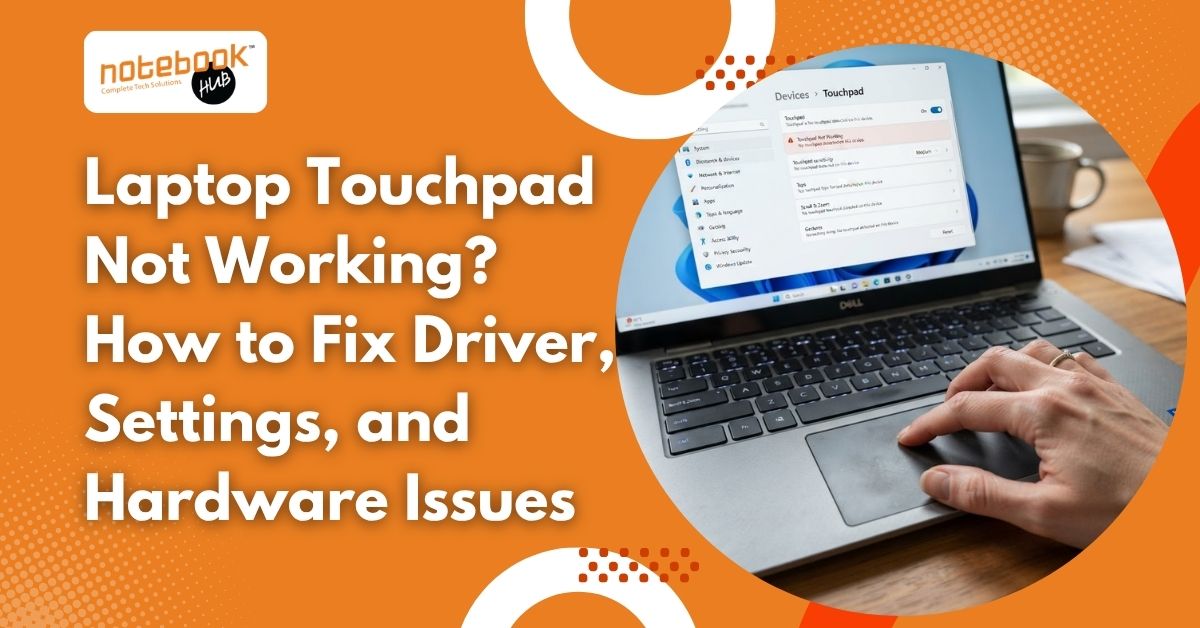
Laptop Touchpad Not Working? How to Fix Driver, Settings, and Hardware Issues

Laptop
Laptop Touchpad Not Working? How to Fix Driver, Settings, and Hardware Issues

A laptop touchpad makes everyday computing easier, whether you are attending online meetings, completing office work, studying, or browsing the internet. When the cursor suddenly stops moving or clicks no longer respond, even a simple task can become frustrating. The problem may appear without warning, sometimes after a Windows update or an accidental keyboard shortcut. The good news is that a non-responsive touchpad does not always indicate hardware damage. A disabled setting, temporary system glitch, or driver issue may be responsible. Before spending money on repairs, try the following solutions in order to identify the cause and restore normal touchpad functionality. What Causes a Laptop Touchpad to Stop Working? Understanding the possible cause can help you choose the right solution instead of trying random fixes. Accidental disabling: A function key or touchpad shortcut may have switched it off. Incorrect settings: Windows may have the touchpad disabled or configured incorrectly. Driver problems: Outdated, corrupted, or incompatible drivers can affect cursor movement and gestures. Windows updates: A recent update may introduce compatibility issues. Dirt or moisture: Grease, dust, or liquid on the touchpad can interfere with finger detection. Hardware damage: A damaged touchpad, loose internal connection, or other component fault may prevent it from responding. Identifying when the issue started, such as after an update, a fall, or a liquid spill, can help narrow down the cause. How to Fix a Laptop Touchpad That Is Not Working?  Check the Touchpad Function Key Many laptops have a dedicated function key for enabling or disabling the touchpad. Look for a keyboard key displaying a touchpad symbol, usually among the F1 to F12 keys. Depending on the manufacturer, pressing that key alone or combining it with the Fn key may toggle the touchpad. The shortcut varies by model, so check your laptop manual if you are unsure. After pressing the correct shortcut, move your finger across the touchpad and check whether the cursor responds. This simple step can resolve the problem if the touchpad was accidentally disabled. Restart Your Laptop A temporary Windows glitch can prevent the touchpad from responding correctly. Save your work, restart the laptop, and test the touchpad after Windows loads completely. If the cursor remains frozen, disconnect unnecessary USB devices, docking stations, and external peripherals. Restart again and check whether the touchpad works. If an external mouse is available, use it to navigate Windows while troubleshooting. Avoid repeatedly forcing the laptop to shut down unless the system is completely unresponsive. Enable the Touchpad in Windows Settings Windows includes a dedicated section for touchpad controls. If the touchpad has been switched off through software, enabling it here may restore functionality. On Windows 11: Open Settings. Select Bluetooth & devices. Choose Touchpad. Turn on the Touchpad option. Test cursor movement and clicking. On Windows 10, open Settings, select Devices, and choose Touchpad. The exact options may vary depending on the laptop model and installed driver. If the Touchpad section is missing, Windows may not be detecting the device correctly, or the appropriate driver may be unavailable. Adjust Touchpad Settings and Gestures Sometimes, the cursor works, but scrolling, tapping, or multi-finger gestures do not. This usually requires checking individual touchpad settings rather than replacing hardware immediately. Open the Touchpad settings page and review options for cursor speed, tap sensitivity, two-finger scrolling, and other available gestures. If the cursor moves unpredictably, reduce the sensitivity or disable unnecessary gestures temporarily. Test one setting at a time to identify which option affects performance. Also check whether connecting an external mouse automatically disables the touchpad. Some laptops provide an option to keep the touchpad enabled when a mouse is connected. How to Fix Touchpad Driver Problems on a Laptop?  Update the Touchpad Driver A driver allows Windows to communicate with the touchpad hardware. If the driver becomes outdated or incompatible, the touchpad may stop responding or lose certain functions. To check for updates: Right-click the Start button and open Device Manager. Look under Human Interface Devices and Mice and other pointing devices. Locate the touchpad device, if listed. Right-click it and select the Update driver. Follow the available instructions and restart the laptop. Device names vary between manufacturers. The touchpad may appear under a different category or use a model-specific name. You can also check Windows Update for available driver updates. If Windows cannot find a suitable driver, visit the laptop manufacturer’s official support website and search using your exact model number. Reinstall a Corrupted Touchpad Driver Updating the driver may not solve the problem if its files are corrupted. Reinstallation can help Windows detect and configure the device again. Open Device Manager, locate the touchpad, and select Uninstall device if the option is available. Restart the laptop and allow Windows to reinstall the driver. Before uninstalling, confirm that you can navigate Windows using a keyboard or external mouse. Downloading the correct manufacturer driver beforehand may also help if Windows does not reinstall it automatically. Avoid unverified driver download sites, as incorrect software can create additional problems. Roll Back a Driver After a Windows Update If the touchpad stopped working immediately after a driver or Windows update, the new software may be incompatible with your laptop. Open Device Manager, right-click the touchpad device, and select Properties. Under the Driver tab, check whether Roll Back Driver is available. If it is available, follow the instructions and restart the laptop. If the option is unavailable, obtain the recommended driver from the manufacturer’s support page. Do not install random driver versions simply because they are newer. Compatibility with your laptop model matters more than the release date. What to Do When Basic Troubleshooting Fails Check for Windows Updates Missing system updates can sometimes contribute to device compatibility issues. Open Settings, navigate to Windows Update, and check for available updates. Review optional driver updates where available, and install only updates appropriate for your device. Restart the laptop afterward and test the touchpad. If the issue began after a particular update, note the update date and any error messages. This information can

Read More

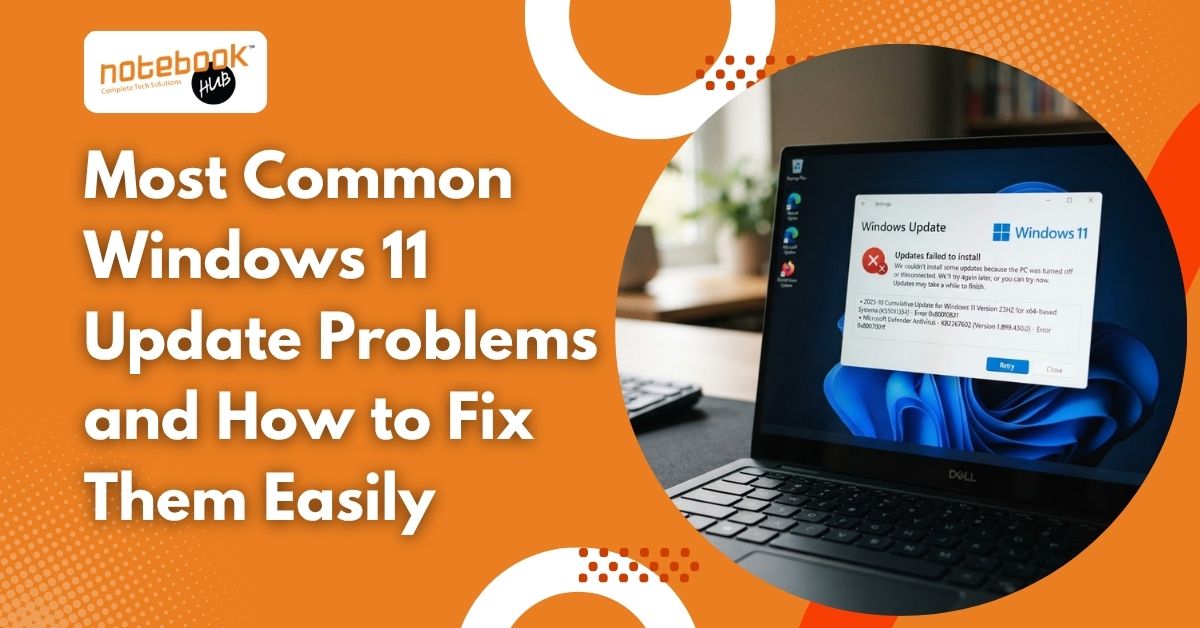
Most Common Windows 11 Update Problems and How to Fix Them Easily

Laptop
Most Common Windows 11 Update Problems and How to Fix Them Easily

Many issues are linked to an unstable internet connection, limited storage, damaged update files, or incompatible drivers. Before resetting Windows or trying complicated fixes, start with a few basic checks and follow a safe troubleshooting order. Knowing what to check first can save time and help you avoid unnecessary changes to your laptop. The following sections explain common Windows 11 update problems, practical solutions you can try at home, and situations where professional technical support may be the better option. What Are the Common Windows 11 Update Problems and Their Fixes?  Windows needs a reliable connection, enough free disk space, working background services, and compatible drivers to install updates. Note any error code before trying different fixes, as it may help identify the cause. You can also learn about common laptop problems and their fixes to troubleshoot other issues affecting your device.  1. Windows 11 Update Keeps Failing An update may download successfully but fail during installation. Windows might display an error code, restart unexpectedly, or restore the previous version. How to fix it: Restart your laptop and reconnect to a stable internet connection. Open Settings, select Windows Update, and check for updates again. Run the Windows Update troubleshooter under Settings > System > Troubleshoot > Other troubleshooters. Disconnect unnecessary USB devices and external drives before retrying. If the same error appears repeatedly, note its code and investigate the specific cause before attempting advanced repairs. 2. Windows 11 Update Gets Stuck at a Percentage An update that remains at 0%, 51%, or 99% can make it seem as though your laptop has stopped responding. However, larger updates may take time to install, depending on your hardware and connection. How to fix it: Keep your laptop connected to its charger and allow the installation time to progress. If it remains unchanged for an unusually long period, check your internet connection and available storage. Restart only when necessary, and avoid switching off the laptop during an active installation unless it is clearly unresponsive. After restarting, open Windows Update and check whether the installation can resume. 3. Windows 11 Update Fails Because of Low Storage Windows needs sufficient free disk space to download temporary files and complete installation. When your system drive is nearly full, updates may fail or leave your laptop running slowly. How to fix it: Open Settings > System > Storage to review space usage. Remove unnecessary temporary files, uninstall applications you no longer use, and move large personal files to suitable external storage after backing them up. Storage Sense can also help clear temporary files automatically. Check the update’s storage requirements before trying again, because major upgrades may need more free space than smaller security updates. 4. Windows Update Displays an Error Code Error codes provide useful clues about what went wrong. For example, 0x80070422 can indicate a disabled update service, while 0xC1900101 commonly points to a driver-related problem. How to fix it: First, write down the complete error code. Run the troubleshooter and check your connection, available storage, and Windows Update service. For driver-related errors, check for compatible drivers through your laptop manufacturer’s official website. Do not download random repair utilities or change unfamiliar system settings. If the error continues, consult troubleshooting guidance for instructions specific to that code. 5. Windows 11 Update Download Is Slow or Fails Sometimes the download barely progresses, repeatedly restarts, or fails before installation begins. An unstable connection, temporary network interruption, or incomplete download may be responsible. How to fix it: Check whether other websites load normally. Restart your router if necessary, reconnect to Wi-Fi, and pause bandwidth-heavy downloads. If you use a VPN, temporarily disconnect it when troubleshooting a connection-related installation error. You can also restart your laptop and try again. Avoid downloading update files from unofficial websites, as these may expose your system to unwanted software. 6. Laptop Becomes Slow After a Windows Update Your laptop may take longer to start, applications may respond slowly, or the fan may become unusually active after an update. Background processes, driver incompatibility, or software conflicts can contribute to these symptoms. How to fix it: Restart your laptop and allow background update tasks to finish. Open Task Manager to identify applications consuming excessive CPU, memory, or disk resources. Check for additional Windows updates and compatible driver updates. Avoid assuming that every performance problem is caused by Windows itself. Along with keeping enough storage available and updating compatible drivers, these tips to speed up a slow laptop can help you maintain better performance during everyday use.  7. Windows 11 Update Service Is Not Running Windows Update depends on background services to download and install updates. If a required service is stopped or disabled, the update process may fail. How to fix it: Press Windows + R, type services.msc, and press Enter. Locate Windows Update and review its status. If it is stopped, use the available Start option where appropriate. Avoid changing unrelated services or modifying advanced settings without understanding their purpose. Restart your laptop and check Windows Update again. If the service repeatedly stops, further software troubleshooting may be required. 8. Apps, Wi-Fi, or Devices Stop Working After Updating An update can sometimes reveal compatibility problems with an application, network adapter, printer, or other device. You might notice missing connectivity, applications crashing, or peripherals no longer responding correctly. How to fix it: Restart the affected application or device first. Check the manufacturer’s website for compatible drivers and application updates. For Wi-Fi issues, review the network adapter in Device Manager and use the appropriate Windows network troubleshooter. If the issue started directly after an update, check Microsoft’s release health information before removing anything. This can help determine whether a known issue or device-specific conflict may be involved. How Can You Prevent Windows 11 Update Problems? A few regular maintenance habits can reduce the likelihood of future update failures. Keep sufficient free space on your system drive. Maintain a reliable internet connection during downloads. Back up important documents before major upgrades. Install compatible drivers from trusted manufacturer

Read More

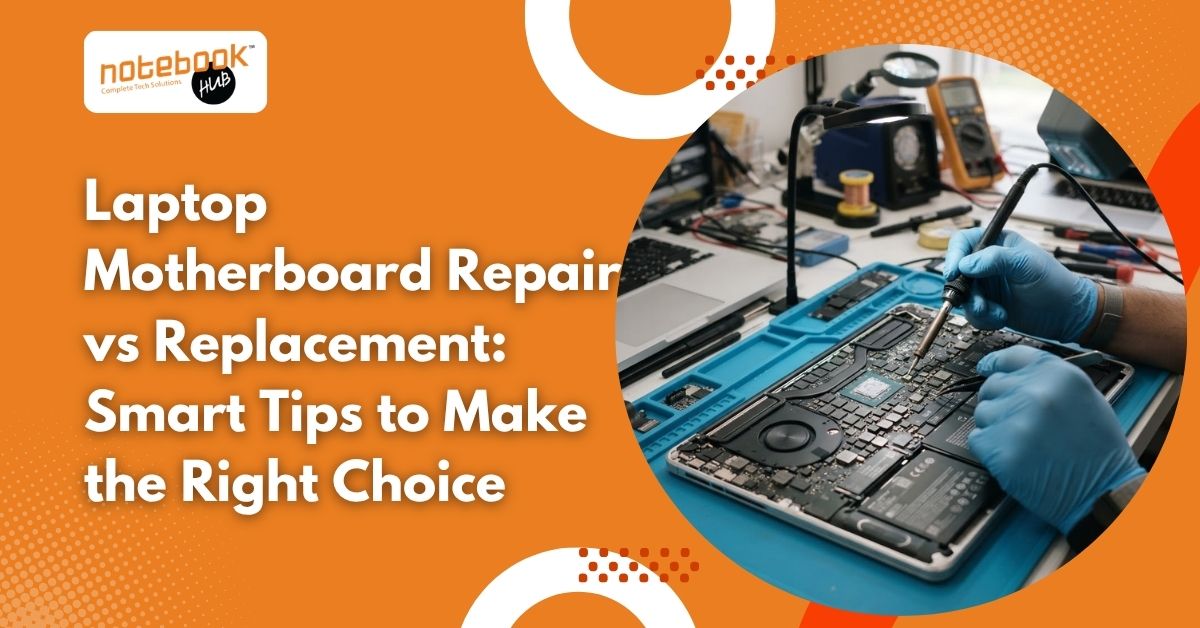
Laptop Motherboard Repair vs Replacement: Smart Tips to Make the Right Choice

Laptop, Tips & Tricks
Laptop Motherboard Repair vs Replacement: Smart Tips to Make the Right Choice

A laptop may suddenly stop turning on, fail to charge, restart unexpectedly, or display a blank screen. These problems can be frustrating, especially when you depend on your device for office work, studies, business operations, or personal files. Sometimes, the motherboard is responsible, but similar symptoms can also result from a faulty battery, charging port, display, or another component. Before agreeing to an expensive repair, it is worth understanding what has actually failed. Laptop motherboard repair can be a sensible option when the damage is limited, while replacement may be more suitable when the board has extensive damage. The right decision depends on the diagnosis, repair cost, laptop age, performance, and long-term reliability. What Does a Laptop Motherboard Do? The motherboard is the main circuit board that connects essential laptop components, including the processor, memory, storage, graphics hardware, charging circuits, and other internal systems. It allows these components to communicate and work together. When a motherboard develops a fault, the laptop may show several symptoms. However, these signs do not automatically confirm that the entire board needs replacement. Common warning signs include: The laptop does not turn on despite using a working charger. The battery does not charge properly. The screen remains blank while the laptop appears to receive power. The device shuts down unexpectedly or restarts repeatedly. USB ports, audio, or other connected components stop working. The laptop behaves abnormally after liquid exposure or overheating. A proper diagnosis helps identify whether the motherboard is faulty or another component is causing the problem. Recognising common symptoms early can help you understand potential hardware faults. Read more about laptop motherboard problems to learn about their causes, warning signs, and possible solutions.  What Is the Difference Between Motherboard Repair and Replacement? Understanding both options makes it easier to evaluate a technician’s recommendation. How Does Laptop Motherboard Repair Work? Motherboard repair involves identifying and fixing the specific fault on the existing circuit board. Depending on the problem, a technician may replace a damaged capacitor, charging IC, power component, or another faulty part. This approach is often called component-level repair or chip-level repair. It requires suitable diagnostic equipment and experience with circuit-level troubleshooting. If the damage is limited and the remaining board is in good condition, repairing the affected component may restore normal operation without replacing the entire motherboard. How Motherboard Replacement Works Motherboard replacement involves removing the faulty board and installing a compatible replacement. The replacement may be new or refurbished, depending on availability and the agreed repair option. This solution can be appropriate when the existing board has extensive damage, several failed circuits, or physical deterioration that makes repair impractical. However, compatibility, component availability, installation quality, and warranty coverage should be checked before proceeding. When Should You Choose Laptop Motherboard Repair? Repair may be the better choice when the fault is identifiable, the damage is limited, and the rest of the laptop remains in good condition. The Problem Is Limited to One Component A failed charging circuit, damaged power component, or certain localised electrical faults may be repairable without changing the complete board. The technician must confirm the affected component through testing rather than assuming the entire motherboard has failed. Your Laptop Still Meets Your Needs If your laptop handles your daily work efficiently and its processor, memory, storage, and display remain suitable, repairing the motherboard may extend its useful life. This is particularly worth considering when a replacement laptop would require a significant additional investment. You Want to Preserve Access to Your Data Some modern laptops use storage encryption or security arrangements linked to the original hardware. Replacing the motherboard can complicate access to existing files in certain models. If your data is important, explain this before authorising work. Ask whether repairing the original board could help preserve access and whether separate data recovery may be necessary. The Repair Cost Is Reasonable Compare the quotation with the laptop’s current market value and the cost of a comparable replacement device. A repair that costs substantially less than buying another suitable laptop may offer better value, provided the expected reliability is acceptable. When Is Motherboard Replacement the Better Option? Repair is not always practical. Replacement may be more appropriate when the damage is severe or a reliable component-level solution is unavailable. The Board Has Extensive Physical or Liquid Damage Liquid damage like water damage can cause corrosion and electrical shorts. Severe overheating, burnt circuit layers, or physical damage may also affect several areas of the board. If the technician determines that the damage cannot be repaired reliably, replacing the motherboard may be the more practical solution. Multiple Circuits Have Failed When several important circuits are damaged, repair may require extensive labour and still leave uncertainty about future performance. Compare the expected reliability and total cost of repair with those of a suitable replacement board. Compatible Replacement Parts Are Available Some older laptops have limited spare-part availability. If a compatible motherboard is available at a reasonable cost, replacement may make sense. Confirm whether the board is new, refurbished, or used and ask about its condition and warranty. Your Laptop Has Other Major Problems Consider the complete condition of the device. If the laptop also needs a new battery, screen, keyboard, or other expensive components, the combined repair bill may be difficult to justify. In that situation, putting the money towards a newer laptop could be a more practical long-term decision. How Much Should You Spend on Motherboard Repair? Motherboard repair costs vary according to the laptop model, the failed component, the severity of the damage, and the technician’s expertise. A minor circuit repair and a complete motherboard replacement are different jobs, so their quotations can differ considerably.  Instead of choosing solely by the lowest price, consider these factors: Diagnosis: Has the technician identified the actual fault? Repair scope: Is the quotation for component-level repair or a complete board replacement? Spare parts: Are compatible, reliable components available? Warranty: What coverage applies to the repair or replacement? Total value: How does the expense compare with

Read More

Why do IT Professionals in Hinjewadi Need Fast Laptop Repair?

Laptop
Why do IT Professionals in Hinjewadi Need Fast Laptop Repair?

A reliable laptop is essential when your work involves coding, testing, client meetings, project management, and constant online communication. A sudden technical fault can interrupt several tasks at once, especially when there is an important deadline or meeting ahead. This blog explains why quick laptop repair is important, which common problems should not be ignored, and how faster support can help reduce work interruptions. Hinjewadi has become a busy technology hub where many professionals spend most of their working hours using laptops and other digital tools. From developers and testers to project managers and consultants, many roles depend on smooth laptop performance to complete daily responsibilities. Issues such as overheating, slow speed, charging problems, SSD failure, screen damage, or sudden shutdowns can affect productivity without much warning. Putting off the repair may lead to longer downtime and added pressure at work. Getting the problem checked promptly can help professionals restore their device and continue their tasks with fewer disruptions. Why Does Fast Laptop Repair Matter For IT Professionals In Hinjewadi? High-Stakes Work IT professionals often work with strict project timelines, client calls, software deployments, testing schedules, presentations, and production-related tasks. A laptop problem during an important assignment can bring work to a standstill. A damaged screen may make meetings difficult, while a failed SSD can prevent access to applications and files. Even a faulty charger can become a serious problem when a professional needs to stay connected for several hours. Fast diagnosis allows the actual issue to be identified before a minor problem becomes a bigger interruption. Performance Needs Software development and other technical jobs can place considerable demands on laptop hardware. Developers may use IDEs, browsers, databases, virtual machines, design tools, testing platforms, and communication software at the same time. If the laptop has insufficient RAM, an aging storage drive, thermal issues, or another hardware fault, performance can decline noticeably. In some cases, an SSD or RAM upgrade may improve the experience. In other situations, the problem may require component-level repair or replacement. Quick technical assessment helps determine the right approach. Remote & Hybrid Schedules Many IT professionals work through a combination of office and remote schedules. When a laptop is sent to a service centre for several days, the inconvenience can extend beyond the repair itself. Travel, waiting, arranging another device, and adjusting meetings can all affect the workday. Convenient repair options can make the process easier for professionals who cannot afford to lose valuable working hours. What Laptop Problems Can Disrupt The Work Of IT Professionals In Hinjewadi? IT professionals in Hinjewadi may face slow performance, overheating, charging faults, and startup issues. You can also check these common laptop problems to understand the issue before getting your laptop repaired.  Slow Laptop Performance A laptop that takes too long to start applications, switch between programs, or open files can reduce productivity throughout the day. Slow performance may be related to storage, RAM, overheating, software issues, or aging hardware. SSD Or Storage Failure Storage problems can cause boot failures, application errors, unexpected crashes, and difficulty accessing files. Strange sounds from an older hard drive, repeated system errors, or sudden performance drops should not be ignored. Battery And Charging Problems A battery that drains quickly can become a major inconvenience during meetings and remote work. Charging-port faults, damaged adapters, or inconsistent power connections can make a laptop unreliable. Understanding the common charging causes can help IT professionals identify laptop power problems early and avoid unnecessary downtime.  Screen, Keyboard And Touchpad Damage IT professionals spend hours reading code, writing documents, attending meetings, and working with software interfaces. A flickering display, broken screen, unresponsive keyboard, or faulty touchpad can make even simple tasks difficult. Overheating And Sudden Shutdowns Frequent overheating is not just an annoyance. It can affect performance and may cause unexpected shutdowns during demanding tasks. If a laptop becomes unusually hot, the fan becomes excessively noisy, or the system repeatedly shuts down, professional diagnosis is advisable. Motherboard And Power Issues A laptop that does not switch on, refuses to charge, or suddenly loses power may have a deeper hardware problem. Motherboard, charging circuit, BIOS, or power-related faults require careful diagnosis rather than trial-and-error part replacement. Early motherboard problems can sometimes show warning signs before a complete failure occurs, so identifying them quickly can help avoid prolonged downtime.  How Can Fast Laptop Repair Help IT Professionals In Hinjewadi?  Fast repair can provide several practical benefits for professionals who depend on their laptops every day. It can reduce lost working hours by shortening the period during which the device remains unusable. It can also help professionals stay closer to their project schedules instead of spending valuable time arranging alternatives. For people working from home, convenient repair support can reduce travel and make it easier to fit technical assistance around meetings and work commitments. Fast service can also help identify upgrade opportunities when a laptop is still functional but no longer meets current performance requirements. Why Is Same-Day Laptop Repair Important For IT Professionals In Hinjewadi?  Same-day laptop repair can be important for IT professionals in Hinjewadi because their daily work often depends on having a reliable device. Tasks such as coding, software testing, client meetings, presentations, documentation, and project updates may all be handled from the same laptop. A sudden charging issue, display fault, SSD problem, or system failure can therefore interrupt the entire workday. Getting the issue checked and repaired on the same day can help reduce unnecessary downtime and keep important tasks moving. For professionals working with tight deadlines, waiting several days for a basic repair can create additional pressure. Same-day support can also be useful for hybrid and remote workers who need their laptop available for scheduled meetings and assignments. Whether the problem involves hardware, performance, or a faulty component, timely repair gives professionals a better chance of returning to their regular workflow without a prolonged interruption. When Should IT Professionals Get Their Laptop Repaired?  Waiting until a laptop completely stops working is not always necessary. Warning signs

Read More

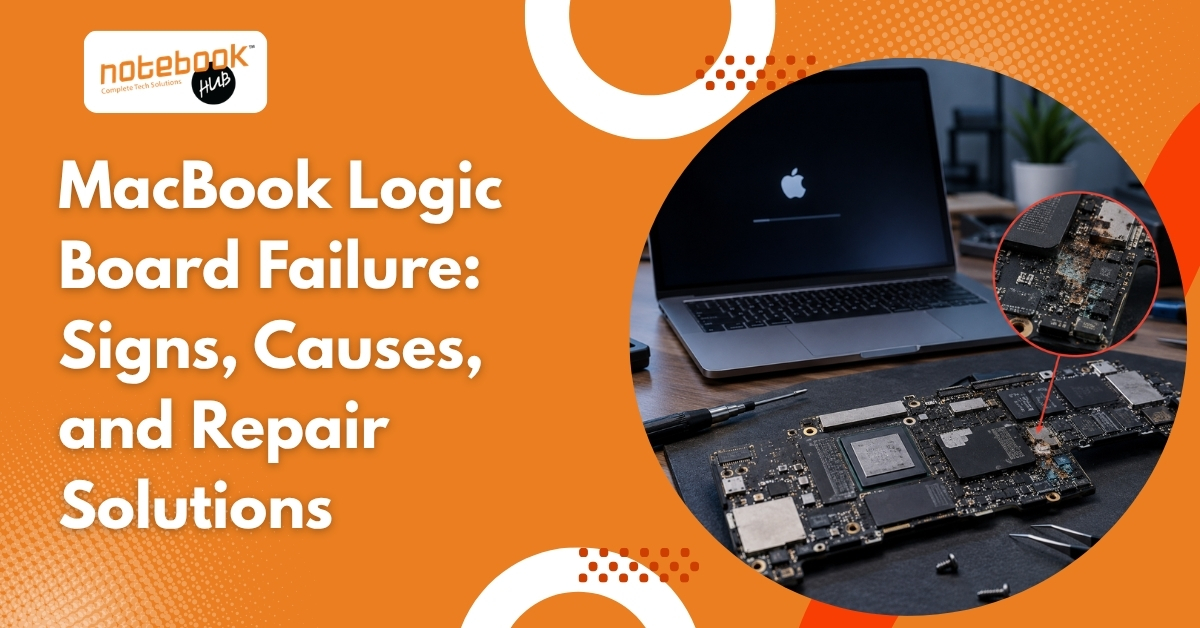
MacBook Logic Board Failure: Signs, Causes, and Repair Solutions

Laptop
MacBook Logic Board Failure: Signs, Causes, and Repair Solutions

A MacBook that suddenly refuses to turn on, stops charging properly, or shuts down without warning can be frustrating, especially when there are no obvious signs of physical damage. In many cases, users assume the battery, charger, or display is responsible. While those components can certainly fail, the real issue often lies much deeper inside the device. The logic board is one of the most important parts of a MacBook. It acts as the central hub that connects and controls the processor, memory, storage, charging system, display, ports, WiFi, and Bluetooth. When a fault develops on the logic board, multiple functions can stop working at the same time, making the problem difficult to identify without proper diagnosis. Understanding the warning signs of logic board failure can help prevent further damage, avoid unnecessary part replacements, and improve the chances of a successful repair. What Is a MacBook Logic Board? The logic board is Apple’s version of a motherboard. It contains the essential circuits and controllers that allow all major hardware components to communicate with one another. Unlike many traditional laptops, modern MacBooks integrate several critical functions directly onto the logic board, making it one of the most complex and important components inside the device. Because so many systems depend on the logic board, even a small failure can affect charging, startup, display output, connectivity, and overall performance. Common Signs of MacBook Logic Board Failure Logic board issues rarely appear as a single obvious problem. Instead, users often experience a combination of symptoms that may gradually worsen over time. Symptom Possible Logic Board Connection MacBook won’t turn on Power management circuit failure Charging issues Damaged charging circuit Random shutdowns Unstable power delivery Black screen Display controller issue WiFi or Bluetooth problems Faulty onboard controller Overheating Failing component drawing excess power USB ports not working I/O controller failure MacBook Won’t Turn On One of the most common signs of logic board failure is a MacBook that shows no response when the power button is pressed. The screen remains black, the keyboard does not light up, and there are no startup indications. While a faulty charger or battery can sometimes cause similar symptoms, a logic board issue becomes more likely when known working accessories fail to solve the problem. Random Shutdowns and Restarts If a MacBook suddenly shuts down during normal use or restarts without warning, the issue may be related to power management circuits on the logic board. These circuits regulate how power is distributed throughout the system, and when they begin to fail, unexpected shutdowns can occur even when the battery is sufficiently charged. Charging Problems Many users immediately blame the battery when charging issues arise. However, charging circuits are located on the logic board itself. A MacBook that charges intermittently, stops charging altogether, or displays incorrect battery percentages may actually be experiencing a board-level fault rather than a battery problem. Black Screen or Display Issues A black screen does not always mean the display has failed. In some cases, the MacBook powers on normally, but a damaged display controller prevents the screen from functioning correctly. Screen flickering, graphical glitches, colored lines, or distorted visuals can also indicate a logic board issue. Multiple Features Stop Working Together If the keyboard, trackpad, USB ports, WiFi, Bluetooth, or camera suddenly stop functioning around the same time, the logic board should be investigated. When several unrelated features fail simultaneously, the issue often originates from a shared controller or circuit on the board rather than individual components. Excessive Heating A failing component on the logic board can draw abnormal amounts of power, generating excessive heat even during light tasks such as web browsing or video streaming. If a MacBook feels unusually hot without running demanding applications, a hardware inspection may be necessary. What Causes MacBook Logic Board Failure? Logic board failures can happen suddenly or develop gradually over time. Some causes are preventable, while others are simply the result of aging hardware. The most common causes include: Liquid spills and moisture exposure • Overheating and poor ventilation • Faulty chargers or power surges • Physical drops and impact damage • Long-term component wear Liquid Damage Water, coffee, tea, and other liquids remain one of the leading causes of logic board failure. Even if the MacBook appears to work normally after a spill, internal corrosion can continue spreading and damage sensitive components over time. Overheating Excessive heat places stress on electronic components and solder connections. Dust accumulation, blocked air vents, and years of heavy usage can gradually contribute to thermal damage. Power Surges and Faulty Chargers Low-quality chargers and unstable power sources can damage charging circuits and power management components on the logic board. Repeated voltage fluctuations may eventually lead to startup or charging issues. Physical Impact Accidental drops and pressure damage can affect internal circuits even when the outer casing appears relatively unharmed. Microscopic damage to solder joints can create intermittent faults that become more noticeable over time. Aging Components Like all electronics, logic board components naturally degrade with age. Years of heating and cooling cycles can weaken circuits until they eventually fail. How Professionals Diagnose Logic Board Issues One of the biggest mistakes MacBook owners make is assuming the cause of a problem without proper testing. Logic board symptoms often overlap with battery, charger, display, and software-related issues. Professional diagnosis typically involves a combination of visual inspection, power rail testing, charging circuit analysis, thermal testing, and component-level inspection. These procedures help technicians identify the exact source of the fault rather than replacing parts through trial and error. This is particularly important because a MacBook that appears completely dead may actually have a single failed component that can be repaired without replacing the entire logic board. Can a MacBook Logic Board Be Repaired? The good news is that logic board failure does not always require a full replacement. Many faults occur at the component level, allowing technicians to replace damaged capacitors, charging circuits, controllers, and other individual components while preserving the original board. Component-level repairs

Read More

AI Laptops vs Traditional Laptops: Which One Should You Buy in 2026?

Laptop
AI Laptops vs Traditional Laptops: Which One Should You Buy in 2026?

If you’ve been looking for a new laptop recently, you’ve probably come across terms like AI Laptop, AI PC, and Copilot+ PC. Almost every major brand is promoting AI-powered devices as the next big thing, promising smarter performance, better productivity, and improved efficiency. At the same time, traditional laptops still power millions of students, professionals, businesses, and creators every day without major limitations. This naturally raises an important question: Is an AI laptop actually worth buying in 2026, or is a traditional laptop still the better choice? The answer isn’t as simple as saying one is better than the other. Both have their strengths, and the right choice depends on how the laptop will be used in everyday life. What Is an AI Laptop? An AI laptop is a computer that includes a dedicated Neural Processing Unit (NPU), a processor designed specifically for AI-related tasks. While traditional laptops rely mainly on the CPU and GPU, AI laptops have an additional component that helps run certain AI features more efficiently. This allows supported applications to perform tasks such as live captions, voice enhancement, AI-assisted editing, smart search, and meeting productivity tools while using less power. However, it’s important to understand that an AI laptop is still a laptop at its core. It can perform all the same tasks as a traditional laptop, but it is better equipped for software that takes advantage of AI hardware. What Is a Traditional Laptop? A traditional laptop relies on the CPU and GPU to handle all computing tasks. These are the laptops most people have been using for years, and they remain more than capable of handling everyday workloads. Whether it’s attending online classes, browsing the web, creating presentations, working on spreadsheets, coding, editing photos, or even using AI tools such as ChatGPT and Gemini, a modern traditional laptop can perform these tasks comfortably. One reason traditional laptops continue to be popular is that most everyday computing tasks simply don’t require dedicated AI hardware. Activities such as email management, web browsing, video streaming, document creation, research work, and business applications run smoothly on modern systems without needing an NPU. This is why traditional laptops continue to dominate the market despite the growing popularity of AI-focused devices. AI Laptop vs Traditional Laptop: Quick Comparison   Feature AI Laptop Traditional Laptop Hardware CPU, GPU & NPU CPU & GPU AI Features Better support for on-device AI Relies more on cloud-based AI Everyday Tasks Excellent Excellent Battery Efficiency Better during AI-heavy workloads Standard Price Range (India) Typically starts around ₹70,000-₹80,000+ Available from ₹30,000 onwards Value for Money Better for AI-focused users Better for most everyday users Future Readiness Better prepared for AI-focused software Suitable for current workloads Best For Creators, professionals, power users Students, office users, general users   * While the differences look significant on paper, the right choice depends largely on how the laptop will be used. For many everyday tasks, both AI laptops and traditional laptops deliver a similar experience.  Why AI Laptops Are Getting Popular The growing interest in AI laptops is largely driven by the way software is evolving. Applications are becoming smarter. Video conferencing tools now offer live captions and background enhancements. Creative software uses AI for image editing and content generation. Productivity tools can summarize meetings, organize information, and automate repetitive tasks. As more software companies integrate AI into their products, laptops with dedicated AI hardware are becoming increasingly attractive. For someone planning to keep a laptop for four to six years, investing in a device that’s ready for future AI features can seem like a sensible decision. However, future readiness should not be confused with necessity. Not every user needs advanced AI capabilities today, which is why understanding the benefits and limitations is important. Benefits of AI Laptops While AI laptops are not essential for everyone, they do offer practical advantages for users who regularly rely on AI-powered applications. The benefits become more noticeable when these tools are part of daily work rather than occasional usage.  Better efficiency for AI-powered tasks Improved battery performance during supported workloads Enhanced video call features such as noise cancellation and live captions Better support for future AI-focused software Useful for content creators and professionals who regularly use AI tools That said, these benefits are most noticeable when AI-powered applications are a regular part of the workflow. Benefits of Traditional Laptops Traditional laptops continue to offer excellent value and remain the best choice for many users.  More affordable across different budgets Excellent performance for everyday tasks Wider range of models and configurations Can run popular AI tools such as ChatGPT, Gemini, and Microsoft Copilot Better value for users who don’t rely heavily on AI-powered software For many buyers, investing the extra budget in more RAM, SSD storage, or a better display often provides greater day-to-day benefits than paying for AI-specific hardware. Where AI Laptops May Disappoint AI laptops aren’t perfect, and it’s important to look beyond the marketing. Higher price compared to similarly configured traditional laptops Many AI features still depend on software support Not every application takes advantage of dedicated AI hardware Cloud-based AI tools often perform similarly on both AI and traditional laptops For users whose primary activities involve web browsing, office work, streaming, and occasional AI usage, the difference may not be as dramatic as advertisements suggest. Who Should Buy an AI Laptop? An AI laptop can be a worthwhile investment for users who regularly work with AI-powered software. Content creators who edit photos and videos, professionals who spend hours in online meetings, and users who rely heavily on productivity tools are more likely to benefit from dedicated AI hardware. Imagine a video editor who spends the day creating content, attending client meetings, and using AI-assisted editing tools. Small improvements in workflow efficiency can add up over time and make an AI laptop a practical investment. Similarly, remote professionals who regularly use live captions, voice enhancement, and meeting productivity features may appreciate the additional capabilities. It can also be a good

Read More

iPhone 18 Pro, Pro Max & Duo: Which One Is Right for You?

Laptop
iPhone 18 Pro, Pro Max & Duo: Which One Is Right for You?

Apple has introduced one of its most interesting iPhone lineups in years. Alongside the iPhone 18 Pro and iPhone 18 Pro Max, the company has also launched the iPhone Duo, Apple’s first foldable smartphone. While all three devices are powered by the new A20 Pro chip and support Apple Intelligence, each model is designed for a different type of user. The iPhone 18 Pro focuses on delivering flagship performance in a more manageable size. The Pro Max builds on that formula with a larger display and improved battery life. The iPhone Duo takes a completely different approach, combining a smartphone and tablet-like experience into a single foldable device. If you’re planning to upgrade this year, here’s everything you need to know before choosing between the iPhone 18 Pro, iPhone 18 Pro Max, and iPhone Duo. iPhone 18 Series Launch Dates in India Apple announced all three devices on 9 September 2026. The iPhone 18 Pro and iPhone 18 Pro Max became available for pre-order on 12 September and officially go on sale from 18 September 2026. India is included in Apple’s first-wave launch markets. The iPhone Duo follows a separate release schedule. Pre-orders begin on 16 October 2026, while official sales start on 23 October 2026. Model Pre-Order Date Sale Date iPhone 18 Pro 12 Sept 2026 18 Sept 2026 iPhone 18 Pro Max 12 Sept 2026 18 Sept 2026 iPhone Duo 16 Oct 2026 23 Oct 2026   You can check availability with official resources iPhone 18 Pro, Pro Max and Duo Price in India Apple has positioned all three devices in the premium smartphone segment. Model Starting Price in India iPhone 18 Pro ₹1,64,900 iPhone 18 Pro Max ₹1,79,900 iPhone Duo ₹2,99,900 The iPhone 18 Pro and Pro Max start with 256GB storage and are available in capacities up to 2TB. The iPhone Duo is also available in storage options up to 2TB. Quick Comparison Feature iPhone 18 Pro iPhone 18 Pro Max iPhone Duo Display 6.3-inch 6.9-inch 7.6-inch Foldable Processor A20 Pro A20 Pro A20 Pro Apple Intelligence Yes Yes Yes Dynamic Island Yes Yes No Foldable Design No No Yes Starting Price ₹1,64,900 ₹1,79,900 ₹2,99,900 What’s New in the iPhone 18 Lineup? Apple’s biggest focus this year is on photography, battery life, performance, and AI. The headline upgrade is the new 48MP Fusion Main Camera with variable aperture. This is the first time Apple has brought adjustable aperture technology to the iPhone, allowing the camera to automatically or manually adapt to different lighting conditions. Apple says this delivers better low-light performance, improved depth control, and more creative flexibility. Another major improvement is the redesigned Dynamic Island. Apple has reduced its size while making it more useful, allowing multiple Live Activities to be displayed simultaneously. Performance has also received a significant upgrade thanks to the A20 Pro processor and a next-generation vapour chamber cooling system that helps maintain performance during gaming, video editing, and AI workloads. Design and Colours The iPhone 18 Pro and iPhone 18 Pro Max are available in Black, Silver, Glacier, and the all-new Burgundy finish. Apple has also introduced a smaller Dynamic Island and improved durability through the latest generation of Ceramic Shield protection. The Pro model remains the easier device to use with one hand and carry daily, while the Pro Max provides a larger viewing experience for entertainment, gaming, and productivity. The iPhone Duo introduces an entirely new design language. When folded, it functions like a compact smartphone. Open it up and it transforms into a tablet-like device with Apple’s largest iPhone display ever. The Duo is available in Star White and Night Sky finishes. Display Experience The display is one of the biggest differences between these devices. The iPhone 18 Pro features a 6.3-inch display, while the Pro Max expands that to 6.9 inches. Both offer ProMotion technology, excellent brightness, and the premium viewing experience expected from Apple’s flagship lineup. The iPhone Duo changes the experience entirely. Its 7.6-inch inner display is 50% larger than the display on the iPhone 18 Pro Max, providing significantly more room for multitasking, reading, editing documents, and media consumption. A 5.4-inch outer display allows quick access when the phone is folded. Apple has also added a nano-texture finish to reduce glare and minimise crease visibility. Performance and Apple Intelligence All three devices are powered by the A20 Pro chip, Apple’s latest flagship processor. According to Apple, the chip delivers major improvements in performance, graphics processing, and AI capabilities. Combined with iOS 27, the devices are designed to make better use of Apple Intelligence and Siri AI across everyday tasks. Users gain access to smarter writing tools, enhanced photo editing features, contextual assistance, and deeper AI integration throughout the Apple ecosystem. Apple continues to emphasise privacy through on-device processing and Private Cloud Compute. Camera Upgrades Explained Photography is where the iPhone 18 Pro lineup sees some of its biggest improvements. The new 48MP Fusion Main Camera features variable aperture technology, allowing users to control how much light enters the sensor. A wider aperture improves low-light performance and portrait photography, while narrower settings can help create sharper landscape images with greater depth. Apple has also introduced Pro Controls, making it easier to adjust aperture, shutter speed, focus, and white balance directly from the Camera app. This gives creators and photography enthusiasts more control without needing third-party applications. The iPhone Duo benefits from Apple’s latest imaging technology while introducing unique foldable camera experiences, including the ability to preview shots on the outer display and use the foldable design for hands-free photography. Battery Life Apple says the iPhone 18 Pro Max delivers the largest battery life increase ever seen on an iPhone. This improvement comes from a combination of battery enhancements, A20 Pro efficiency gains, and software optimisations in iOS 27. The iPhone 18 Pro continues to provide all-day battery life, while the Duo balances battery performance across its dual-display design. Apple has also improved thermal management across the lineup to support demanding tasks without compromising efficiency.

Read More

How to Choose the Best Laptop Repair Shop in Pune?

Laptop
How to Choose the Best Laptop Repair Shop in Pune?

Your laptop rarely stops working at a convenient time. It could refuse to turn on before an important office presentation, freeze during an online meeting, or suddenly display a black screen when you’re about to submit a college assignment. When that happens, the biggest challenge isn’t just fixing the laptop. It’s finding a repair shop that can actually be trusted. Pune has hundreds of laptop repair centres, but not every shop offers the same level of expertise or transparency. Some technicians carefully diagnose the issue before suggesting a solution, while others may immediately recommend replacing expensive parts without proper testing. Making the right choice can save money, protect important data, and extend the life of your laptop. Whether you’re an IT professional working in Hinjewadi, a student near Deccan or FC Road, a business owner in Baner, or someone living around Kothrud, Wakad, Aundh, Pimpri Chinchwad, Sadashiv Peth, or Kharadi, choosing a reliable laptop repair shop in Pune is just as important as the repair itself. Here’s what to look for before handing over your laptop. Why Choosing the Right Laptop Repair Shop Matters A laptop is more than just another electronic device. It stores office files, family photos, business records, academic projects, passwords, and personal information. A poor repair experience can result in repeated breakdowns, unnecessary expenses, or even permanent data loss. One of the biggest differences between a professional repair shop and an inexperienced one is the way they diagnose problems. For example, a laptop that isn’t charging doesn’t always need a motherboard replacement. In many cases, the actual problem could be a damaged charging pin, faulty adapter, worn-out DC jack, or even accumulated dust affecting internal components. An experienced technician identifies the real issue before recommending expensive repairs. A proper diagnosis saves both time and money. What Makes a Laptop Repair Shop Trustworthy? Price is important, but it should never be the only deciding factor. A trustworthy laptop repair centre focuses on solving the problem instead of selling unnecessary repairs. Before choosing a repair shop, look for these qualities. Experienced technicians Every laptop brand has different hardware designs. Repairing a gaming laptop is different from repairing a business laptop or an ultrabook. Experienced technicians understand these differences and can quickly identify the actual fault. Transparent pricing A professional repair shop explains what is wrong, what needs to be repaired, and how much it will cost before beginning the work. Clear communication builds trust and avoids unpleasant surprises later. Quality replacement parts Whether replacing a battery, keyboard, display, SSD, or charging connector, the quality of the replacement part plays a major role in the laptop’s long-term performance. Warranty on repairs A repair warranty shows confidence in the quality of work and provides peace of mind if the same issue returns. Positive customer feedback Reading recent customer reviews can reveal how a repair shop handles communication, pricing, turnaround time, and after-service support. Questions to Ask Before Handing Over Your Laptop Many customers leave their laptops at a repair shop without asking any questions. Spending just a few minutes talking to the technician can help avoid misunderstandings later. Consider asking: What exactly is causing the issue? Will the laptop be diagnosed before replacing any parts? How much will the repair cost? Will original or high-quality compatible parts be used? How long is the estimated repair time? Is there a warranty on the repair? Will my data remain safe during the repair process? A professional technician should answer these questions clearly instead of using confusing technical language. Protect Your Data Before Laptop Repair Most people worry more about their files than the hardware itself, and that’s completely understandable. If the laptop is still functioning, create a backup of important documents, photos, and office files before submitting it for repair. Log out of important accounts if possible and keep copies of critical data on cloud storage or an external drive. Although many hardware repairs don’t require access to personal files, discussing data privacy beforehand adds another layer of confidence. Don’t Choose a Repair Shop Only Because It’s Cheap Everyone wants affordable laptop repair, but choosing the lowest quote often becomes expensive later. Imagine two repair shops. One offers a screen replacement at a very low price but uses a poor-quality display without any warranty. Another charges slightly more but installs a high-quality replacement display that has been tested and includes warranty support. The second option usually delivers better long-term value. The same applies to batteries, keyboards, charging ports, cooling fans, and SSDs. Paying a little more for quality workmanship often prevents another repair bill a few months later. Instead of asking, “Who offers the cheapest repair?”, ask, “Who offers the most reliable repair?” Genuine Parts Make a Big Difference The quality of replacement parts directly affects the performance and lifespan of a repaired laptop. A low-quality battery may lose charging capacity within a few months. A poor-quality display can have uneven brightness or colour issues. Cheap keyboards may stop responding after limited use. Always ask what type of replacement parts will be installed and whether suitable alternatives are available. A reliable technician will explain the options honestly rather than pushing the most expensive one. Watch Out for These Warning Signs Some repair shops give warning signs before the repair even begins. Be cautious if a technician: Recommends replacing the motherboard without proper diagnosis. Cannot explain the actual problem. Avoids discussing repair costs clearly. Offers no warranty on the repair. Promises unrealistic repair times without inspecting the laptop. Has consistently poor customer reviews. If something doesn’t feel right, getting a second opinion is often the smarter decision. Common Laptop Problems a Professional Repair Shop Should Handle An experienced laptop repair shop should be able to diagnose and repair a wide range of hardware and software issues. These commonly include: Laptop screen replacement Battery replacement Keyboard replacement Motherboard repair Charging port repair SSD upgrades RAM upgrades Cooling fan replacement Overheating issues Water damage repair Hinge repair Data recovery Virus removal Windows installation and

Read More

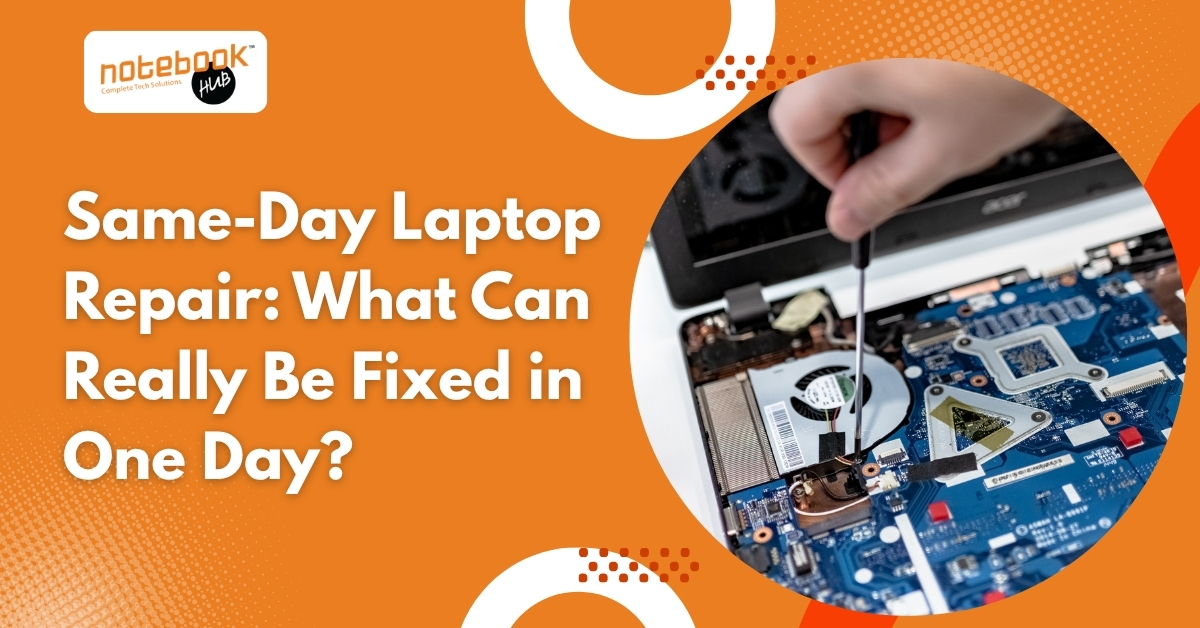
Same-Day Laptop Repair: What Can Really Be Fixed in One Day?

Laptop
Same-Day Laptop Repair: What Can Really Be Fixed in One Day?

A laptop can fail at the most inconvenient moment. It could happen before an important client meeting, during college exams, or while working on a project with a strict deadline. When that happens, one question comes to mind immediately: Can it be repaired today? The good news is that many laptop problems can be diagnosed and repaired on the same day. However, not every issue can be resolved within a few hours. The repair time depends on the type of problem, the availability of spare parts, and whether the damage involves critical internal components. Understanding what qualifies for same-day laptop repair helps set realistic expectations and ensures you receive the right solution without unnecessary delays. What Is Same-Day Laptop Repair? Same-day laptop repair means your laptop is diagnosed, repaired, tested, and returned on the same day whenever the required parts are available and the issue does not involve complex component-level repairs. Professional repair centers usually begin with a complete diagnosis to identify the exact cause of the problem. Once the issue is confirmed and the customer approves the repair, technicians begin the repair process immediately. What Happens During a Same-Day Laptop Repair? Although every repair is different, most follow a similar process. Stage Typical Time Initial inspection and diagnosis 15 to 30 minutes Repair estimate and approval 15 to 30 minutes Hardware or software repair 30 minutes to 3 hours Testing and quality check 30 to 60 minutes Device handover Same day for eligible repairs If additional faults are discovered during diagnosis, the repair timeline may change. Laptop Repairs That Can Often Be Completed in One Day Software Issues Software problems are among the quickest laptop issues to resolve because they usually do not require replacement parts. Common examples include: Windows startup errors Slow laptop performance Virus and malware removal Blue screen errors Driver installation issues Windows updates causing system problems Application crashes These issues can often be fixed by repairing Windows, updating drivers, removing malicious software, or reinstalling the operating system if necessary. SSD Upgrade Replacing a traditional hard drive with an SSD is one of the most popular laptop upgrades. If a compatible SSD is available, technicians can install the new drive, migrate your data if required, reinstall Windows when necessary, and complete testing within a few hours. An SSD upgrade typically improves: Boot time File transfer speed Software loading time Overall system responsiveness RAM Upgrade If your laptop becomes slow while multitasking, upgrading the RAM may significantly improve performance. Installing compatible memory modules is usually a straightforward process and can often be completed during the same visit. Battery Replacement Laptop batteries naturally lose their capacity over time. Signs that your battery may need replacement include: The battery is draining unusually fast Laptop shutting down unexpectedly Battery not charging fully Battery health warning messages If the correct battery is available, replacement and testing are generally completed within an hour. Laptop Screen Replacement A cracked or damaged display does not always mean waiting several days. Many standard displays for HP, Dell, Lenovo, ASUS, Acer, and other popular laptop brands are readily available. Screen replacement includes: Removing the damaged display Installing a compatible panel Testing brightness and display quality Checking webcam and display cable connections Keyboard Replacement Broken keys, liquid damage, or an unresponsive keyboard can affect daily work. Many keyboard replacements can be completed on the same day, particularly for commonly used laptop models. Charging Port Repair If your laptop only charges when the cable is held at a certain angle or stops charging completely, the charging port may be damaged. Minor charging port repairs or DC jack replacements are often completed within a few hours. Cooling Fan Cleaning Dust buildup is one of the most common causes of overheating. Cleaning the cooling system includes: Removing accumulated dust Cleaning the fan Replacing thermal paste if required Improving airflow Regular maintenance helps reduce overheating and extends the life of internal components. Repairs That Usually Require More Than One Day Some repairs involve advanced diagnostics or replacement parts that may not be immediately available. These include: Motherboard Repair Motherboard problems require specialized equipment and component-level repair. Common issues include: Power circuit failure Short circuits Damaged ICs Burnt components These repairs often take several days because each circuit must be tested carefully. Liquid Damage Water or other liquids can damage multiple internal components simultaneously. Even if the laptop powers on after drying, hidden corrosion may continue to affect performance. A proper liquid damage repair involves complete disassembly, cleaning, inspection, and testing, which usually takes longer than one day. Data Recovery Recovering files from physically damaged storage devices requires specialized tools. The process depends on the condition of the drive and cannot always be completed within a few hours. Rare Replacement Parts Some gaming laptops, premium ultrabooks, and older laptop models require special components that are not always available locally. Ordering these parts naturally increases repair time. Which Laptop Brands Can Be Repaired the Same Day? Many same-day repairs are available for popular laptop brands, including: HP Dell Lenovo ASUS Acer MSI Samsung Toshiba Repair availability depends on the laptop model and the required replacement part. Factors That Affect Repair Time Several factors determine whether a laptop can be repaired on the same day. Spare Parts Availability Repairs are faster when compatible parts are already in stock. Displays, batteries, keyboards, SSDs, and RAM for popular laptop models are generally easier to source than components for older or premium devices. Type of Damage Simple component replacement usually takes less time than repairing damage affecting multiple internal circuits. For example, replacing a battery is significantly faster than repairing a damaged motherboard. Accurate Diagnosis A laptop may display one symptom but have multiple underlying problems. For example, a laptop that refuses to switch on could have: A faulty charger A damaged charging port Defective RAM Motherboard failure Power IC issues A proper diagnosis helps prevent unnecessary repairs and saves time. Quality Testing Every repaired laptop should be tested before it is returned. Testing typically includes:

Read More
  • 1
  • 2
  • …
  • 5

Recent Posts

  • Laptop SSD Not Detected? Causes, Diagnosis, and Data Recovery Options
  • Laptop Touchpad Not Working? How to Fix Driver, Settings, and Hardware Issues
  • Most Common Windows 11 Update Problems and How to Fix Them Easily
  • Laptop Motherboard Repair vs Replacement: Smart Tips to Make the Right Choice
  • Why do IT Professionals in Hinjewadi Need Fast Laptop Repair?

Categories

  • Desktop
  • Laptop
  • Mobile
  • Tablet
  • Tips & Tricks

Popular Posts

  • Top 10 Best Tablets Under ₹25,000 in India (2026 Edition)
    Tablet, Tips & Tricks

    Top 10 Best Tablets Under ₹25,000 in India (2026 Edition)

  • Top 10 Best Mobiles Under ₹25,000 in India
    Mobile

    Top 10 Best Mobiles Under ₹25,000 in India

  • Apple MacBook Neo: Is It the Best Budget MacBook in India?
    Laptop

    Apple MacBook Neo: Is It the Best Budget MacBook in India?

Sign Up For Newsletters

Get E-mail updates about our latest shop and special offers.

Call Us: +91 9373634805

Quick Links

  • Home
  • About Us
  • Contact
  • Wishlist
  • Order Tracking

Categories

  • Laptops
  • Desktops
  • Mobiles
  • Tablets
  • Accessories

Policy

  • Terms of Use
  • Pricing and Payment Policy
  • Shipping and Delivery Policy
  • Cancellation and Return Policy
Notebook Hub

@ 2026 Notebook Hub. All Rights Reserved.

Designed and Developed by The Branding Tales

Notebook Hub
SMART REPAIR CHECKFixCheck™
Free preliminary check • Laptop & MacBook
Device Step 1 of 5
×

Table of Contents

    • Store
    • Search
    • Account
    • Categories